Import data points from Excel
Here's how to import multiple data points at once in Evolo using an Excel template.
Written By Evolo Support
Last updated About 1 month ago
Other Ways to Add Data Points
This article is about importing from Excel. For some protocols, there are also separate options:
KNX: Import from ETS XML
BACnet: import from EDE and BACnet Discovery
OPC-UA: OPC-UA Scanner
Here’s how to do it
Go to Configuration and select Data Points.
Click Excel Import and select the desired protocol.
Click Download Template.
Open the template in Excel.
Fill in the parameters for the data points in the “
Datapoints” sheet.Select the updated template in the import dialog.
Click "Import."
Update existing data points
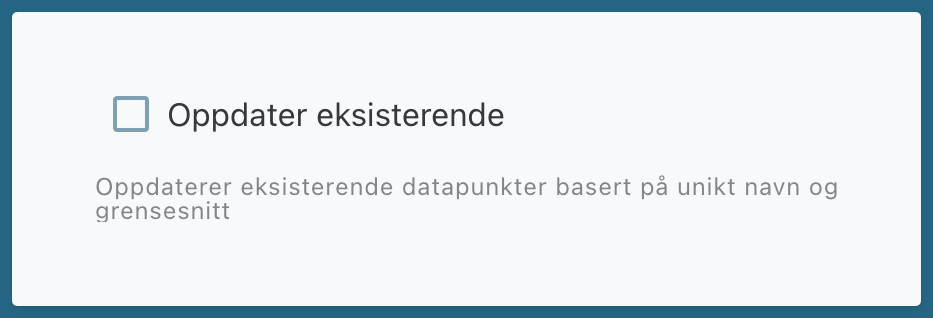
You can enable “Update Existing” to update data points that already exist. “Evolo” uses unique names and interfaces to find the correct data points and avoid duplicates.
Update based on ID
When updating existing data points, you can check this box to match by ID instead of name, allowing data points to be renamed. You must have the ID column in the Excel sheet being imported.

Common fields
Some fields appear in all protocols.
Name
Required. The name of the data point. This is the name that appears when the data point is later used in the system, for example, in a component within a view. It is recommended to use a consistent naming convention.
Description
Optional. An additional description of the data point.
Interface
Required. The identifier for the interface from which the data point should read. This points to the correct physical device and the correct interface. You can find the identifier in the table view under Interface Configuration.
Unit
Name or unit of measurement, such as %, ppm, or l/s.
Return Statement
Optional. JavaScript for processing the incoming message.
Payload statement
Optional. JavaScript for processing the outgoing message.
Protocol-specific fieldsKNX
Import from ETS
You can also import from ETS by exporting the project to XML and uploading the file in the KNX XML dialog. This will generate an Excel sheet in the "Evolo" format where supported DPTs are validated. After you have processed the file, you can upload it again in the KNX import.
Fields for KNX
DPT: The data format the top-level system expects from the KNX system.
Group Address: The group address used to read data from KNX.
Log Type: Select Standard or Accumulating.
Log Interval: Required if you have selected a log type. Possible options are OneMinute, FiveMinute, and Event.
Supports-Read: Allows Evolo to send a ReadGroupAddress if no updated value is available on the bus. This should only be used if the feature is supported and enabled in ETS.
Important Information About Logging for KNX
Log-Interval It should be noted that KNX is an event-based bus.
Eventis usually the correct choice for KNX.OneMinuteFiveMinutecan be used if you need a fixed interval, but this is usually not necessary.
Modbus
For Modbus, use the Excel template and enter the address and technical parameters for each data point.
Supported function codes are FC01, FC02, FC03, and FC04.
Write requests for FC01 and FC03 are automatically selected by the system.
Fields for Modbus
Data Type: Specifies how the data should be decoded, such as INT16, BOOL, or FLOAT32.
Function Code: The function code to be used in the request.
Address: The address of the Modbus register.
Query Size: Used for boolean values with FC3 and FC4. Specifies the size of the memory area: 16, 32, or 64.
Bit number: Used for boolean values with FC3 and FC4.
Weight: Scales the received value.
Log Type: Standard or Accumulating.
Log-Interval: Required if you have selected a log type. OneMinute, FiveMinute, or Event
Important Information About Logging for Modbus
Log-Interval It should be assumed that Modbus is normally read via polling.
OneMinuteFiveMinutes are usually the correct choice for Modbus.EventShould only be used when necessary.
With “Event,” the ModbusTCP driver reads the data point cyclically every two seconds. This can provide high resolution, but also results in more traffic and load.
MQTT
For MQTT, use the Excel template and enter the topic and any expressions for processing incoming and outgoing messages.
Fields for MQTT
QOS: Quality of Service level for MQTT.
Topic: The address of the data point.
Bool: Optional. Specifies whether the data point is Boolean.
Retain: Optional. Specifies whether the retain flag should be set on outgoing messages.
Decimals: Optional. The number of decimal places displayed by default.
Log-Type: Optional. Standard or Accumulating.
Log-Interval: Optional. OneMinute, FiveMinute, or Event.
Important Information About Logging for MQTT
Log-Interval should be set based on how messages arrive at the topic.
Eventis appropriate when the data point is updated by incoming messages from an external system.OneMinuteFiveMinutes can be used if you prefer logging at fixed intervals instead.
With “Event,” the data point is logged when new messages arrive.
BACnet
Import from an EDE file
You can also import from an EDE file. To do this, upload the file in the BACnet EDE dialog, and you’ll receive an Excel sheet in “Evolo” format where supported objects have been validated. After you’ve processed the file, you can upload it again in the BACnet import.
Fields for BACnet
Object Type: The object type in the BACnet device.
Instance Number: The address of the data point in the BACnet device.
Property Type: The property to which the data point refers. In this article, only “present value” is supported in the import.
Log Type: Optional. Standard or Accumulating.
Log Interval: Required if you have selected a log type. OneMinute, FiveMinute, or Event.
Supported object types in BACnet import
Evolo The following object types are supported in the import:
Analog input
Analog output
Analog value
Binary input
Binary output
Binary value
Important Information About Logging for BACnet
Log-Interval should be configured based on how the BACnet device provides updates.
EventCan be used if the device supportsSubscribeCOV.OneMinuteor "FiveMinute" is the safer choice if the device does not support event-based updates.
Event is therefore not recommended if the device does not support "SubscribeCOV."
You can also use our BACnet Discovery to simplify the import of data points.
OPC-UA
For OPC-UA, use the Excel template and fill in the node and data type.
OPC-UA Fields
Node ID: The identifier for the node in the OPC server’s address space.
Data Type: The data type of the data point.
Decimals: Optional. The number of decimal places displayed by default.
Log Type: Optional. Standard or Accumulating.
Log Interval: Required if you have selected a log type. OneMinute, FiveMinute, or Event.
Important Information About Logging for OPC-UA
Log-Interval should be set based on how the data point is updated in the OPC-UA server.
Use "
Event" if the data point is updated on an event-based or push-based basis.Use `
OneMinute` or `FiveMinute` if the data point should be read at fixed intervals.
You can also use our OPC-UA Scanner to import data points more easily.
Still need help? Ask the team