Enable push notifications
With push notifications, you can receive alerts from Evolo directly on the device you're using. Push notifications can be enabled on both the web and mobile devices.
Written By Evolo Support
Last updated About 2 months ago
Enable push notifications on your device
For the best experience on mobile devices, visitDownload the Evolo app for iPhone or Android.
. Get started:
Open Account Settings at Evolo via the user icon in the top menu.
Find the Push Notifications section.
Select "Enable push notifications on this device."
Allow notifications if your browser or phone asks for permission.
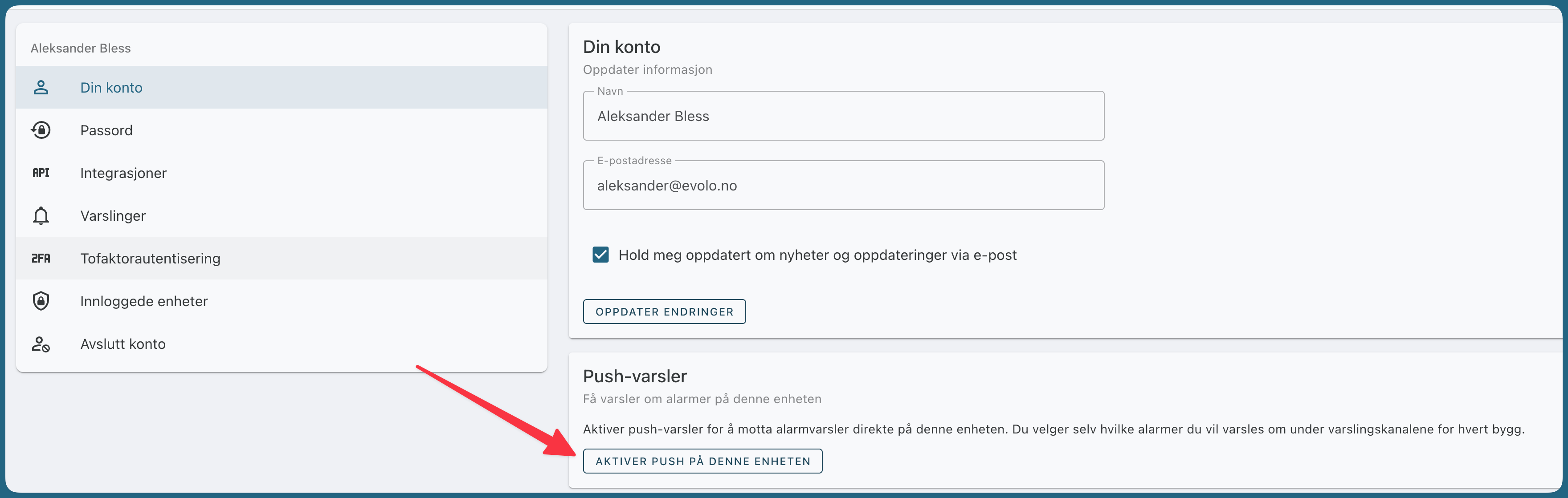
To stop notifications on a device, select "Disable push on this device."
Select which notifications you want to receive
Once push notifications are enabled on your device, select which notifications you want to receive.
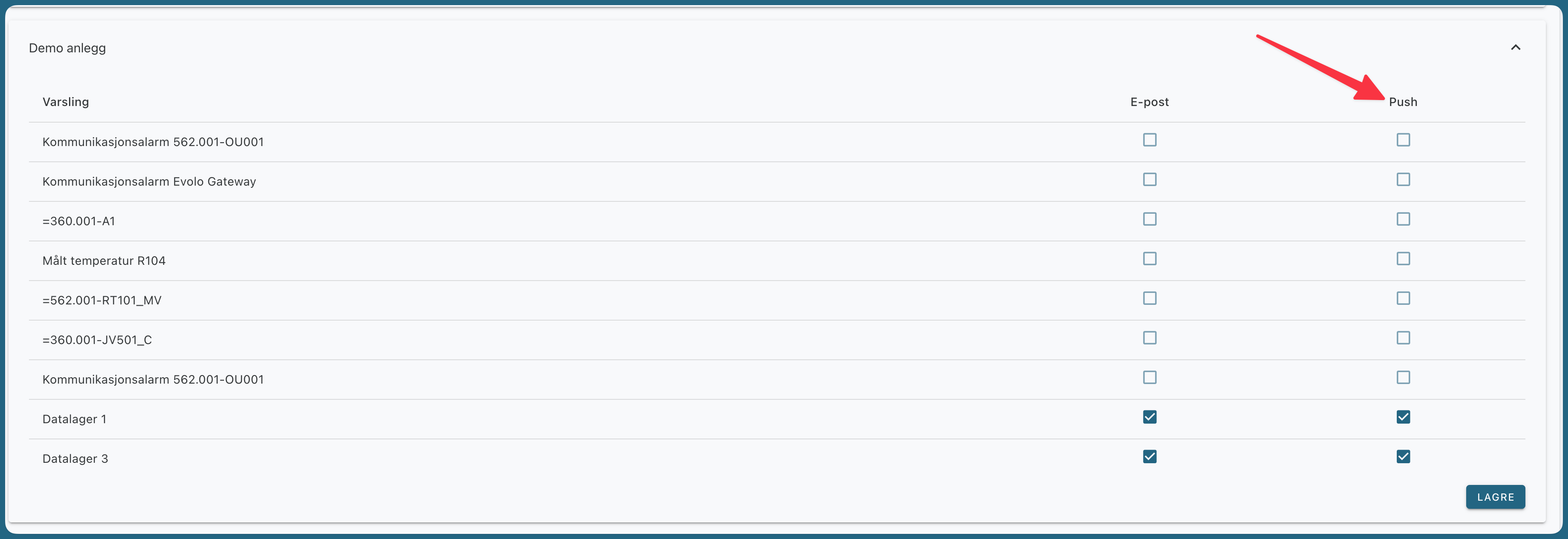
Go to Notifications in the menu.
Find the building you want to configure.
Find the notification you want to receive.
Check the box in the Push column.
Repeat for the other notifications you want to receive.
Select Save.
You will now receive the selected notifications as push notifications on your device.
On the same page, you can also choose which notifications you want to receive via email.
Important to know
Push notifications must be enabled on your device before you can receive them.
If you use Evolo on multiple devices, push notifications must be enabled on each device where you want to receive notifications.
Your browser or operating system must also be allowed to display notifications from Evolo.
If You Are Not Receiving Push Notifications
First, check that:
push notifications are enabled under Account Settings
the desired notification is selected in the Push column
the changes under “Notifications” have been saved
Evolo you have permission to send notifications on your device
If you still aren't receiving notifications, check your notification settings in your browser or on your phone.
Was this helpful?
Still need help? Ask the team