Edit or delete an event
Here's how to edit or delete an event in the calendar.
Written By Evolo Support
Last updated 6 days ago
Edit a regular event
Click on the event.
Update the fields you want to change.
Click Save.
Delete a regular event
Click on the event.
Click the delete icon in the upper-right corner of the dialog.
Edit a recurring event
Click the event.
Click the edit icon in the upper-right corner of the dialog box.
Select how the change should be applied.
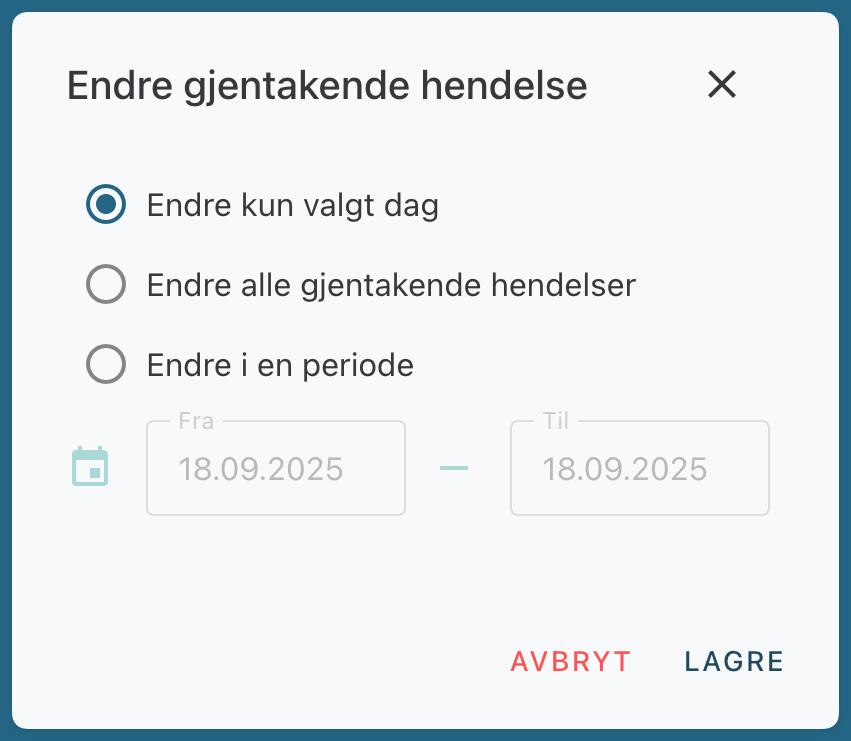
When you edit a recurring event, you’ll see these options:
Change only the selected day
The selected day is removed from the recurring series. A new one-time event is then created with the updated times.Change all recurring events
: The entire series is updated with new start and end times.Change within a period
Only events within the selected period are updated.
Delete a recurring event
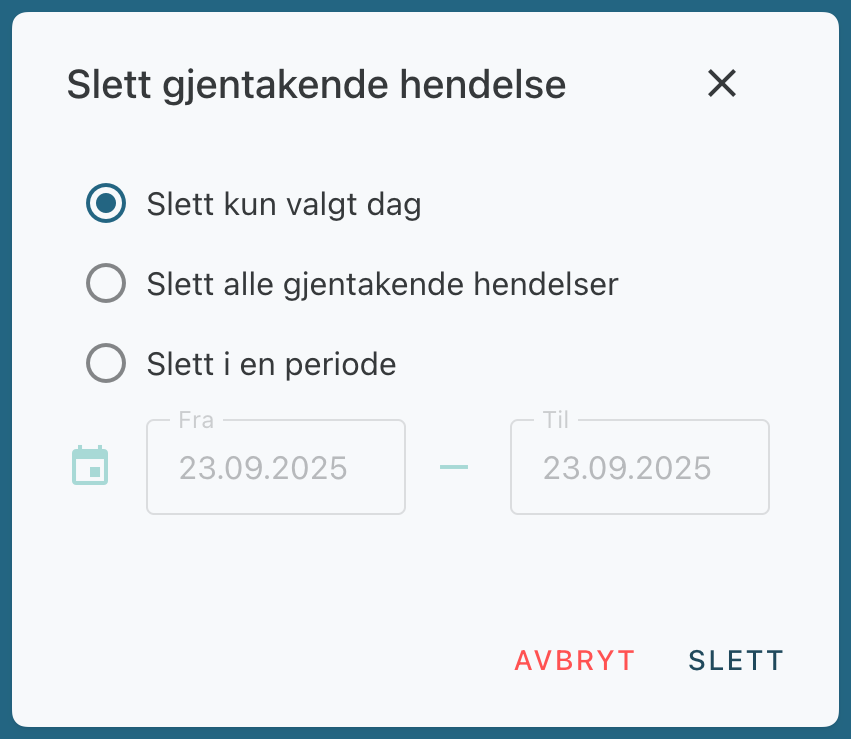
When you delete a recurring event, you can choose between:
deleting only this day
delete all recurring events
delete events within a period, such as a week
Restore deleted dates
Deleted days do not appear in the calendar. To view them, turn on “Show deleted dates” in the side menu. They will then appear crossed out.
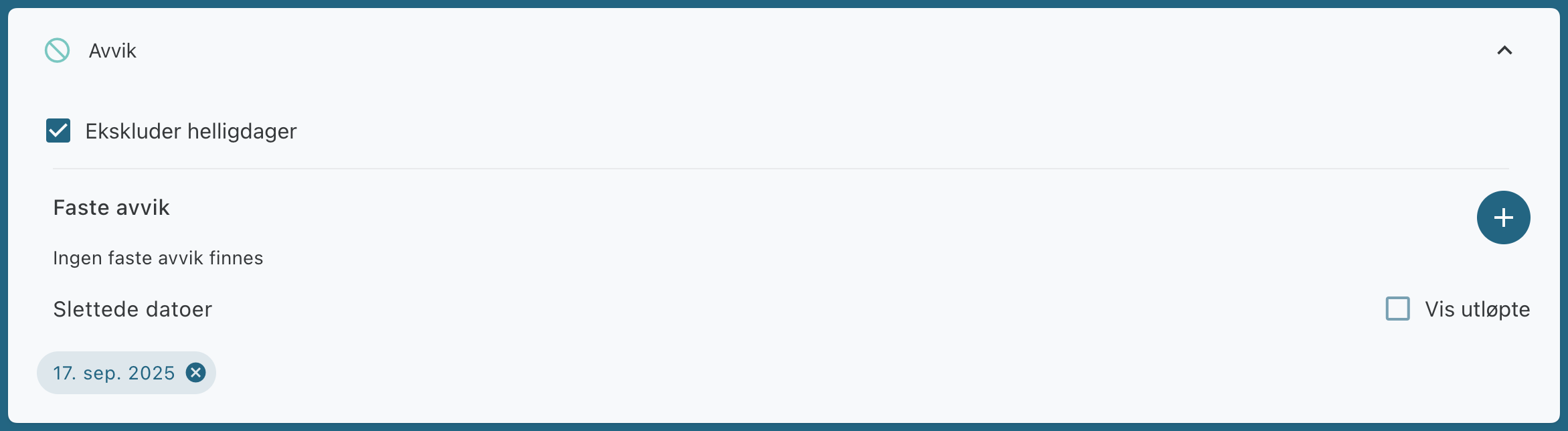
If you’ve deleted specific days from a recurring event, you can restore them under “Deviations” and then “Deleted Dates.”
Use “Change for one day” when you only want to adjust a single exception. Use “Change for the entire series” when you need to update the recurring schedule.
Was this helpful?
Still need help? Ask the team