Connect Airthings devices to Evolo using MQTT
Using the Airthings MQTT Publisher, Airthings sends your measurements to Evolo.
Written By Evolo Support
Last updated 21 days ago
Once the setup is complete, you can view measurements such as temperature, radon, CO₂, humidity, and noise at Evolo, with logging, alarms, and display options just like for all other data points.
Before you begin
To get started, you’ll need the following from Airthings:
An Airthings for Business account with at least one device online, and access to the MQTT Publisher in the Airthings Dashboard.
The serial number of each Airthings device you want to retrieve data from (displayed on the device and in the Airthings Dashboard).
Access to User → Integrations in Evolo to create an MQTT key.
Evolo The gateway must have access to mqtt.evolo.no (Outbound traffic TCP 8883)
1. Enable MQTT and create a key at Evolo
Go to Configuration → Gateways:
Open the gateway you created, check the Enable MQTT box, and save. Note the gateway’s key, for example,
C2DM-4T4Z-GA71. It will be used in the topics later.Go to User → Integrations, the MQTT tab, and click Create New MQTT Client.
Give it a name, select the “Write MQTT” access type, select “Built-in,” and click “Create.”
Copy the username (UUID) and the token. The token is displayed only once, and you’ll need both in Airthings later.
2. Add Airthings as a device in Evolo
Go to Configuration → Devices
Add a new device, for example, “Airthings.” Enter
mqtt.evolo.noas the IP address/hostname. This field is required but is not used to connect to anything for this type of device.Add an interface to the device with the type “MQTT Incoming.” No other settings are required.
All Airthings devices in the building can be connected behind this single interface. The serial number in the topic of each data point determines which physical device the value comes from.
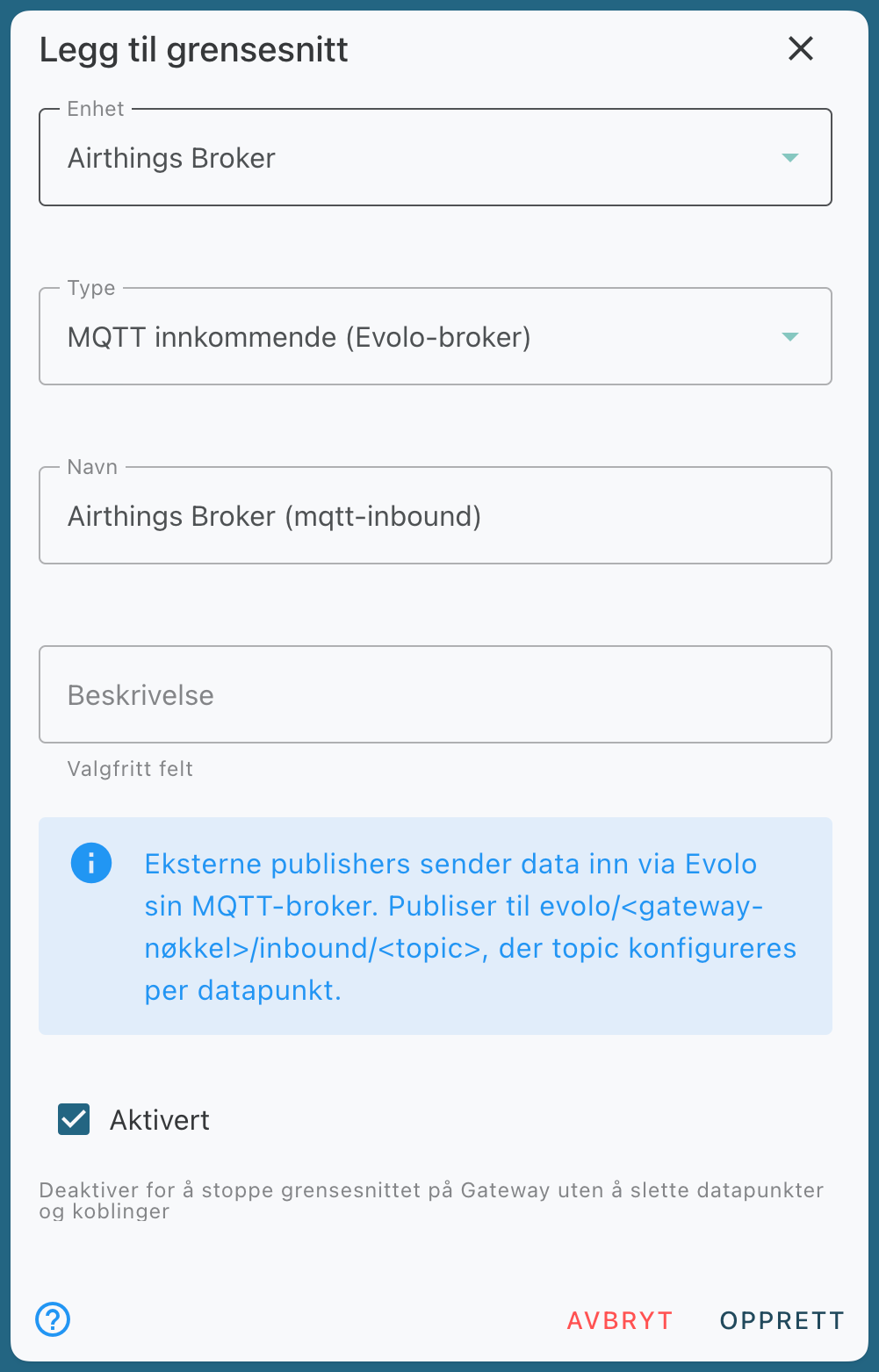
3. Add data points
Add one data point per measurement you want to read, for each Airthings device. The data points for a single physical device use the same topic but different expressions. Feel free to include the room or device name in the title, for example, “Room 109 Temperature”:
Expressions for the most common measurements
Import from Excel
If you have many devices, you can import the data points from Excel.
Select Import → MQTT Incoming in the data point list and download the template. The template contains pre-filled rows for the Airthings measurements; copy the rows for each device, replace the serial number in the “topic” column, and enter the interface ID. All rows can point to the same interface.
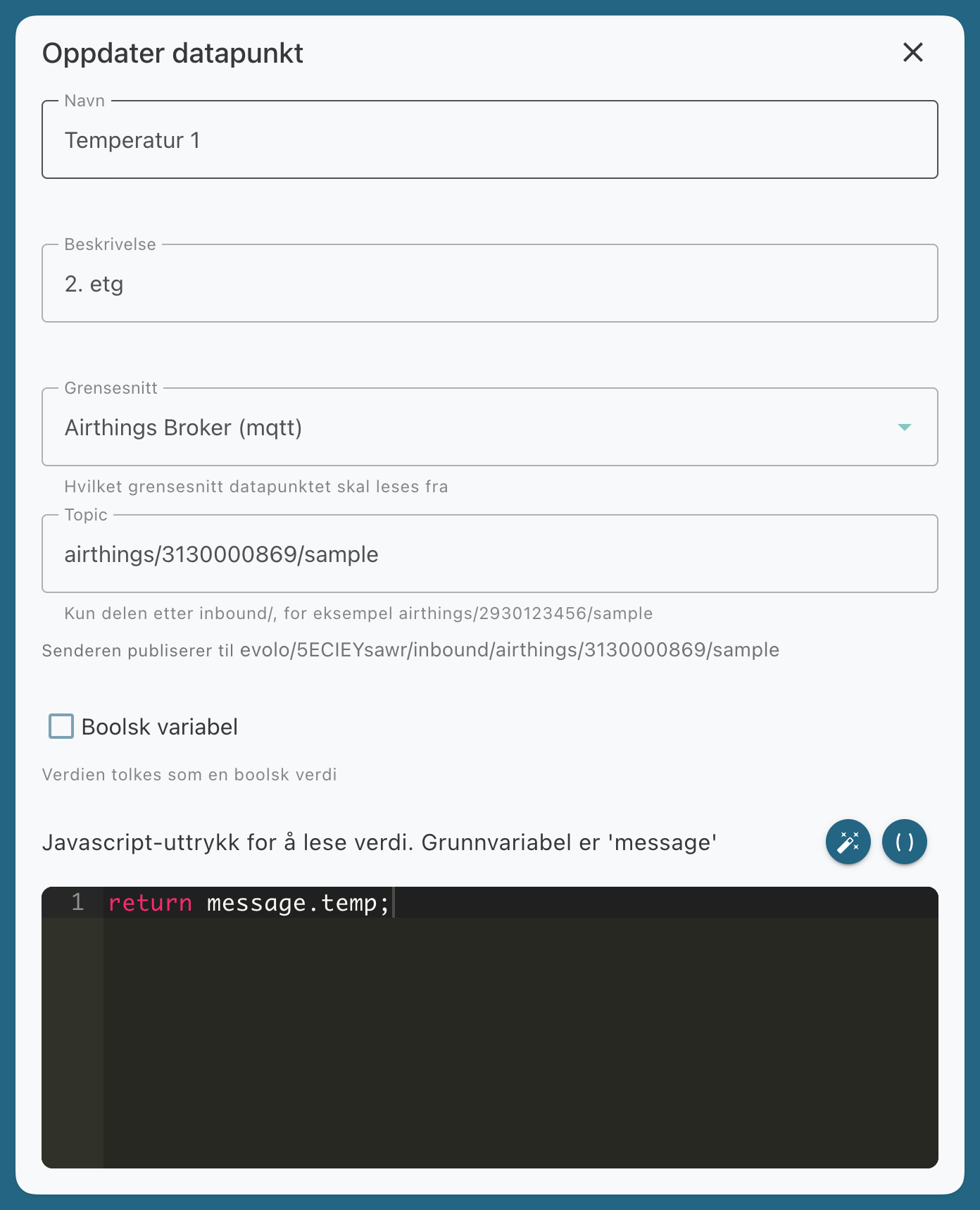
4. Set up the Airthings MQTT Publisher
In the Airthings Dashboard, under Integrations → MQTT Publisher, create a connection to Evolo:
When you save and activate the publisher, Airthings sends one test message from the serial number 0000000000. It confirms the connection but does not hit any data points and can be ignored.
5. Test
Airthings devices measure and report approximately every 5 minutes, so expect a delay of 5 to 10 minutes from the time the publisher is activated until the first value appears.
Open a data point in Evolo and click “Read Data Point” to view the most recently received value. You can also subscribe to evolo/<gateway-nøkkel>/tags/# using an MQTT client and watch the values come in.
NOTE! The Evolo Gateway must have access to mqtt.evolo.no (Outbound traffic on TCP port 8883)
Troubleshooting
No data is coming in
No data is coming in
Probable cause: The topic format in Airthings does not match the topic on the data points, or the MQTT key lacks the necessary permissions.
Solution: Compare the full topic displayed in the data point dialog with the topic format in Airthings, character by character. Verify that the gateway key is correct, that the key applies to the correct building, and that “Enable MQTT” is turned on for the gateway.
The publisher cannot connect
The publisher cannot connect
Probable cause: The username or password is incorrect.
Solution: The username should be the key’s UUID (not the email address), and the password should be the entire token. If you’ve lost the token, create a new key. Airthings clears the password field if the connection test fails, so re-enter it before saving again.
The data point is reading the wrong value
The data point is reading the wrong value
Likely cause: The expression points to the wrong field in the message.
Solution: Check the message from Airthings and use the correct field name, such as temp, co2, or humidity. Test using “Read Data Point.”
Need help? Contact your installer or our support team at support@evolo.no
Was this helpful?
Still need help? Ask the team