Acknowledge an alarm
Here's how to acknowledge an alarm that has been triggered
Written By Evolo Support
Last updated 6 days ago
When you acknowledge an alarm, you indicate that it has been viewed and will be followed up on. You can acknowledge it from the alarm list or from the alarm details.
Acknowledge from the alarm list
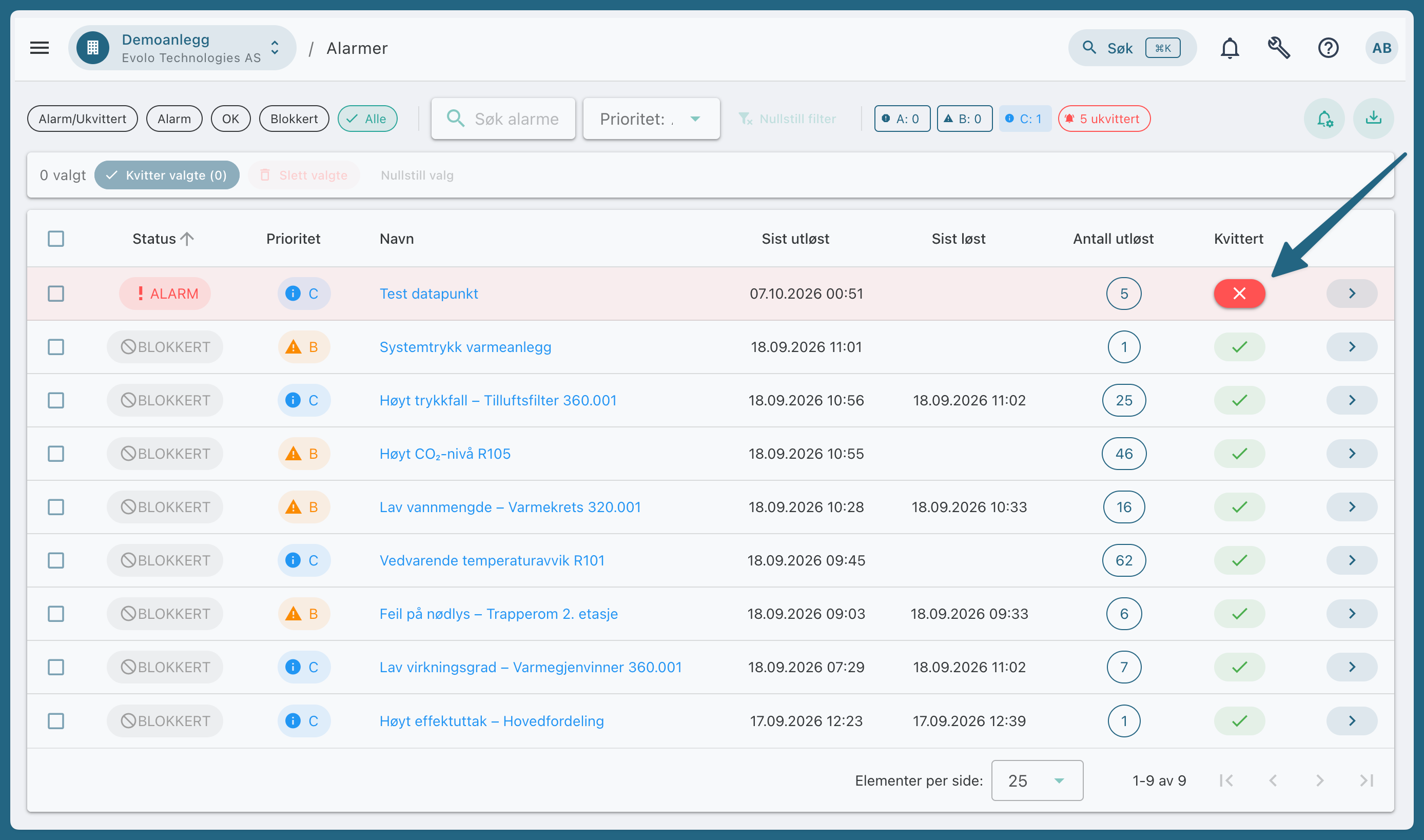
Go to Alarms in the menu.
Tap the Acknowledge button in the alarm’s row.
To acknowledge multiple alarms at once, check the boxes next to the alarms and select "Acknowledge Selected."
When you acknowledge from the list, you acknowledge all events under that alarm.
Acknowledge from the details
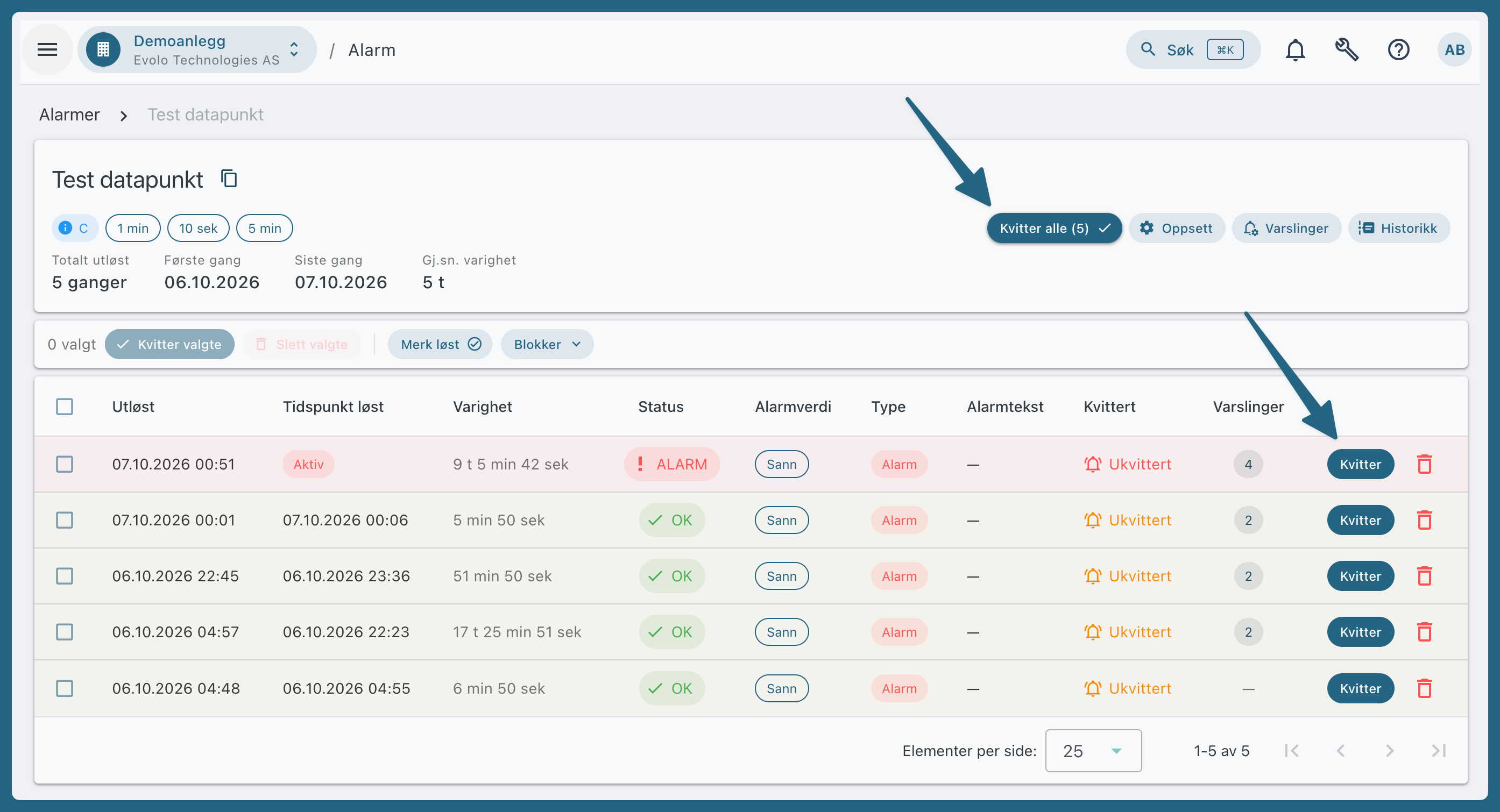
Click the alert in the list to open the details.
Tap “Acknowledge All” to acknowledge all events, or acknowledge a single event in the timeline.
What You See in Alarms/Unacknowledged
The Alarm/Unacknowledged filter shows all active alarms, including those that have been acknowledged, as well as alarms that have been resolved but not acknowledged. An active alarm therefore remains in the list after you’ve acknowledged it, until it’s resolved.
Red: active and not acknowledged.
Yellow: normalized but not acknowledged.
Gray: blocked.
Require Acknowledgment After Normalization
By default, an alarm must be acknowledged even if it has resolved. If you do not want this for a specific alarm, turn off “Require Acknowledgment After Resolution” in the alarm settings. The alarm will then be closed as “Unacknowledged” when it resolves without anyone having acknowledged it.
Was this helpful?
Still need help? Ask the team