Use the BACnet schedule in the calendar
Here you can see how to use a pre-configured BACnet schedule in the calendar. A BACnet schedule is used to control fixed weekly times and modes for a facility.
Written By Evolo Support
Last updated About 1 month ago
Before You Begin
This article applies to the use of BACnet schedules that have already been set up by an installer.
If you do not see the BACnet tab in the calendar, an installer must first set up a BACnet schedule object.
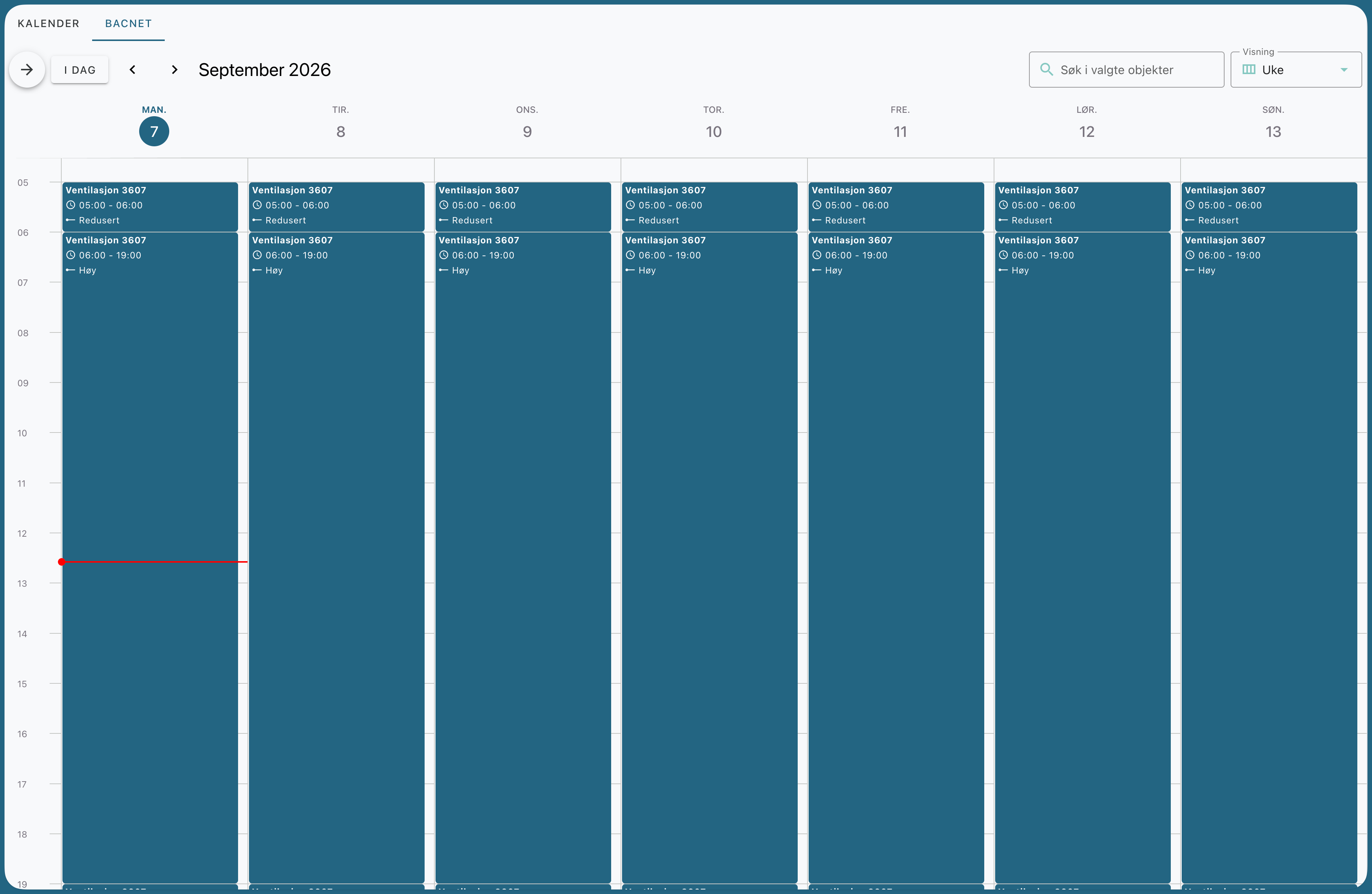
How to view the calendar
Go to Calendar and open the BACnet tab. In the left-hand sidebar, select which schedules you want to view. One schedule is selected by default, and each schedule has its own color.
The calendar displays the schedule as time periods:
An entry applies from its start time until the next entry on the same day, or until the end of the day.
Each period displays the name of the schedule, the time range, and the applicable mode.
"Reset" at the bottom of a period means that the system reverts to its default value when the period ends.
Red periods are exceptions that override the weekly schedule on specific dates.
At the top, you can search selected items and switch between day, week, and month views.
Add a period to the weekly schedule
Click and drag in the weekly overview where you want the period to be, or click New and select Time in the schedule.
Select Weekly Schedule at the top of the window. (If you select Exception, you’ll create an exception for a specific date instead.)
Select the schedule, day of the week, start time, and mode.
Leave “Has End Time” checked and select an end time. The default end value is “Reset,” which means the system reverts to the default value when the period ends. You can also select a different mode to apply after the period ends.
Click Save. The change is written directly to the BACnet device.
Change, move, or delete a period
Click on a period to change the start, end, or mode. Delete removes the entire period from the schedule.
Drag a period to move it to a different time or day. The calendar scrolls automatically when you drag toward the edge.
Use exceptions
Exceptions are used when the system is to operate differently from the weekly schedule on specific dates, such as holidays or vacations. Exceptions appear as red periods in the calendar.
Click New and select Exception.
Select a time schedule and date. You can choose a single date, a date range, or a rule such as “week and day” (for example, the last Friday of the month).
Enter the value changes that will apply on that day.
Click Save.
Click a red exception in the calendar to edit or delete it. The weekly schedule appears crossed out on days where an exception overrides it.
Schedule Settings
Click the gear icon next to the schedule in the sidebar to:
set the validity period (start and end dates for the entire schedule)
view and edit all exceptions in a list
completely clear the schedule
Was this helpful?
Still need help? Ask the team