FDV: Buildings, Systems, Documents, and Operations Logs
FDV (Facility Management, Operations, and Maintenance) consolidates the building's operational documentation in one place in Evolo.
Written By Evolo Support
Last updated 8 days ago
Here you will find building data and contact information, descriptions of the technical systems, drawings and documents, and the operational log of nonconformities and corrective actions.
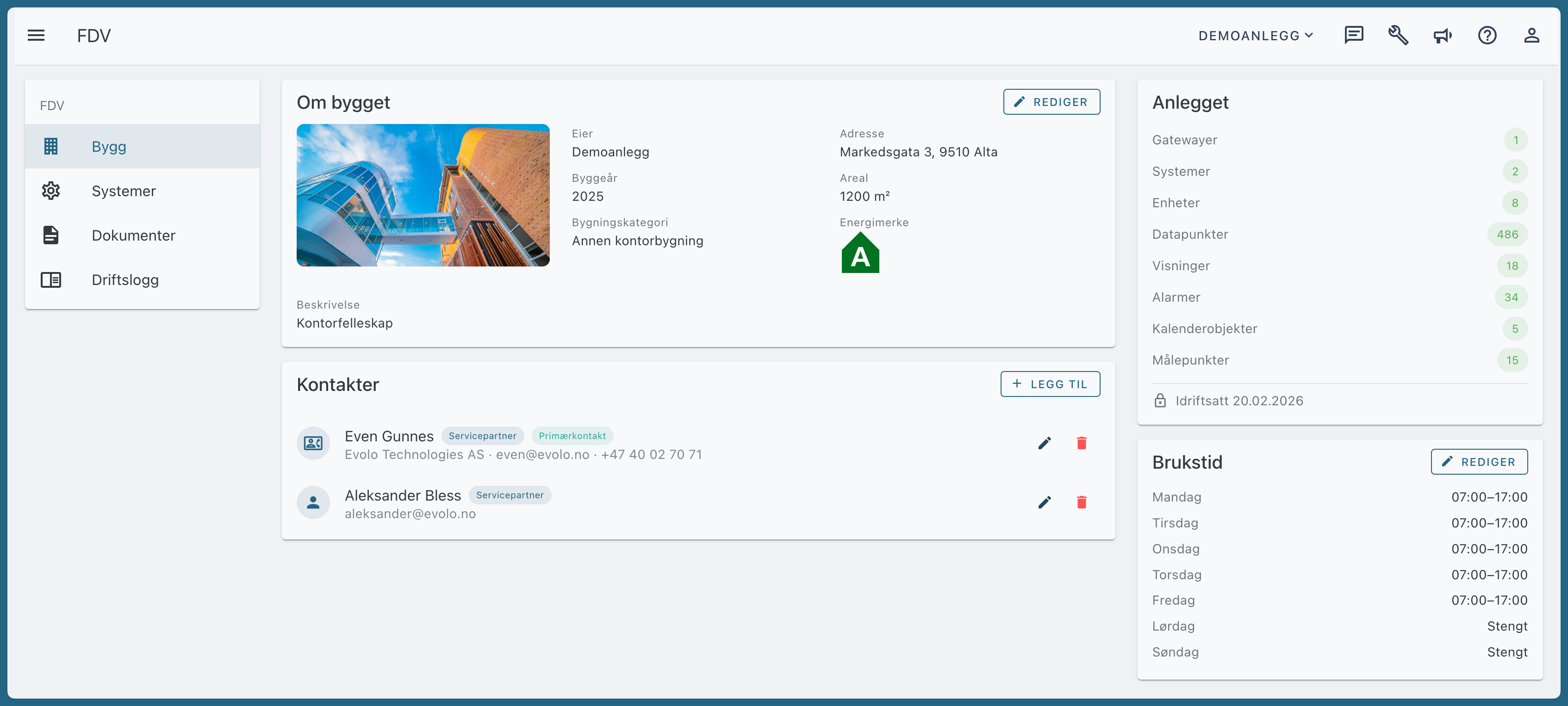
Building
The Building page displays a photo and description of the building, along with the owner, building category, year built, floor area, and energy rating.
Under “Facility,” you can see how many gateways, systems, devices, data points, displays, alarms, calendar items, and measurement points the building has.
To edit building data:
Go to FDV and Building.
Click Edit.
Enter the building category, year built, floor area, and energy rating, as well as a description and image of the building, if applicable.
Click Save.
Usage Time
Usage time refers to when people are in the building. It is used in insights, reports, and occupancy tracking. On the Usage Time tab, turn on “Enable Usage Time” and select the start and end times for when the building is in use each day. Days without specified times are displayed as “Not in use.”
Contacts
Contacts show who owns, operates, and supplies the building. The primary contact is the one displayed behind the help icon on the building.
Tap “Add Contact.”
Select where the contact comes from:
From the organization: a contact card already in use for another building in the organization. Requires that you are a member of the organization and have access to Members.
Building user: someone who has access to this building, either directly or through a user group. The name and email are retrieved from the user. Requires access to “Users” for the building. If the same user is added to multiple buildings, the same contact card is used.
External contact: Enter the name, email, company, phone number, and, if applicable, a note.
If applicable, select a Role, such as Building Owner, Operations Manager, or Service Partner.
Check the “Primary Contact” box if the contact should appear behind the help icon.
Click Save.
The contact cards belong to the organization. If you edit a card, it will be updated across all buildings where it is used.
Systems
A system is a technical installation in the building, such as “=360.001 Ventilation System” or a heat pump. The list shows the code, name, and category for each system.
Open a system to view three tabs:
Operational Information: operational description, maintenance, location, manufacturer, and year of installation.
Data Points: all data points associated with the system, including unit, address, and whether they are logged or have an alarm.
Documents: the files in the system’s folder under Documents, including files in subfolders.
To use Edit FDV, click Edit on the system to change the category, location, manufacturer, year of installation, operational description, and maintenance.
Documents
The documents are stored in folders. Tap the arrow next to a folder to show or hide its subfolders. At the top of the file list, you’ll see your current location, such as “All Documents › Systems › 360.001 Ventilation,” and you can tap to navigate back up.
New folder: Create folders and subfolders wherever you need them, including within a system folder.
Upload files: Select a folder and upload a file or add a link. Files can be up to 25 MB, such as PDFs, Word documents, Excel spreadsheets, images, and DWG/DXF drawings.
Open: Tap the file name. PDFs and images open in a new tab; other files are downloaded.
Download, move, or delete: use the three-dot menu on the file. Under “Move to,” select the folder to which the file should be moved.
System folders cannot be renamed or deleted. A folder containing files cannot be deleted until the files have been moved or deleted. If a system folder is deleted, the folder itself is also deleted, and the files are moved to the top level.
Operational Log
The operation log is the building’s log of deviations, actions, and events. It is used during the trial operation and continues as a regular operation log afterward.
Types of entries:
How to create an entry:
Go to FDV and Operations Log.
Click New Entry.
Select the type, enter a title and description, and, if applicable, select the system to which it applies.
Click Save.
Use the filters All, Open, Closed, and Automatic, or the search field, to find entries.
Deviations are resolved in two steps
The Status column shows the current status of a deviation: Open, Resolved, Rejected, or Approved. Hover your mouse over the status to see who did what and when.
The installer corrects the deviation, clicks Mark as Resolved, and, if necessary, notes what was done. The text appears on the same line as the deviation.
The person who reported the deviation checks it and clicks “Approve,” or “Reject” with a reason if it hasn’t been resolved. A rejected deviation remains open until it is corrected again.
The deviation is closed once it is approved. An entry cannot be changed after it has been resolved. If something is incorrect, create a new entry.
Test Run and Automatic Entries
While the test run is in progress, the period is displayed at the top of the operation log. During this period, Evolo creates automatic deviations when an A-alarm is triggered and when a test is completed with a deviation. The title links to the alarm or test to which the entry applies.
When the installer ends the test run, the entries from that period are locked and marked with a lock icon. The log continues as a regular operation log.
Who Can Do What
FDV has two permissions:
Read FDV: You can view everything in FDV.
Edit FDV: You can also modify building data, contacts, and documents; make entries in the operation log; and update the operational information for the systems.
The systems are set up by the installer, who also determines the code, name, and which data points belong to each system.
If you don’t have access, contact the installer or the building administrator.
Still need help? Ask the team