Set up an Easee charging station
The Easee app connects Evolo to the Easee Portal. This allows you to retrieve data from the charging stations and monitor charging activity.
Written By Evolo Support
Last updated 9 days ago
Here's how to do it
Go to Configuration and select Applications.
Click Add New Application.
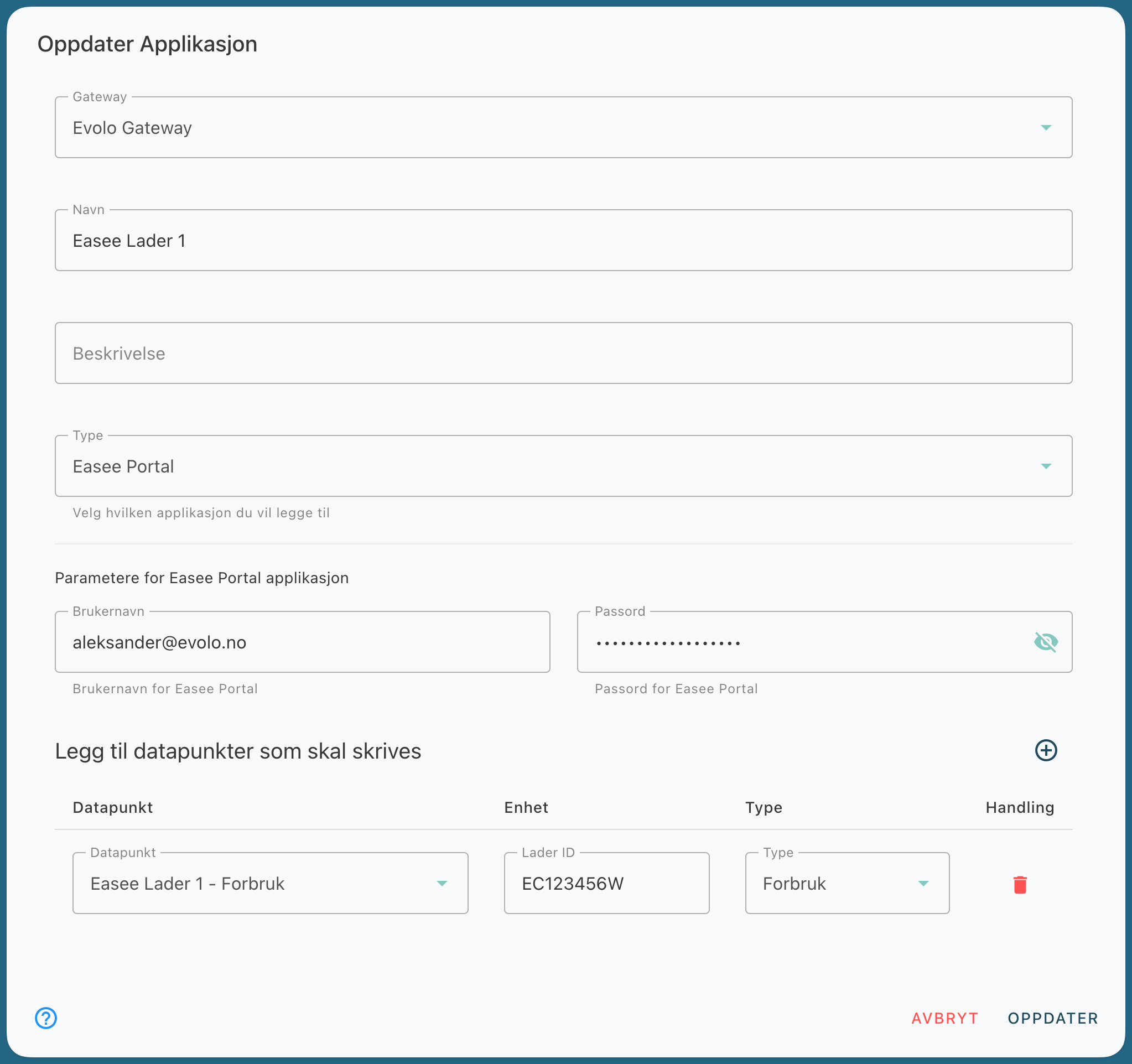
Enter a name, a description if desired, and select a gateway.
Enter your username and password for the Easee Portal.
Click "Get Chargers."
Select the chargers and the types of data you want to retrieve, then click Add.
Select or create a virtual data point for each row.
Click "Create."

Fields you must fill in
Name and description
: Give the application a name and, if desired, enter a description.
Gateway
Select the gateway for the data points to be used.
Username
Enter your Easee Portal username.
Password
Enter your password for Easee Portal. If you are editing an existing application, this field can be left blank.
Chargers
Click “Get Chargers” to view all chargers your account has access to.
The list shows the name, serial number, site, and rate, and chargers that have already been added are marked “In use.” Select the chargers you want to use and the types of data to be retrieved for each charger. When you click “Add,” you’ll see one row per charger and data type, pre-filled with the relevant information.
Data Points
: Select which data points you want to write data to. We recommend using a “virtual data point of the "data store" type.”
Type
Shows the type of data the row retrieves and is pre-filled based on the selection you made in “Retrieve Chargers.” You can change the type for each row. See the overview below for the types you can retrieve.
An application can have a maximum of 100 data points. The gateway must be connected in order to retrieve the chargers.
Data Types You Can Retrieve
You can retrieve these values from Easee:
Consumption – cumulative energy consumption over the charger’s lifetime, in kWh
Active power – total active power, in kW
Hourly consumption – cumulative energy consumption per hour, in kWh
Session consumption – cumulative energy consumption for the current charging session, in kWh
Online? – whether the charger is connected to the cloud
Operating mode
Current draw T2, T3, T4, and T5 – current in A
Output current – maximum current the charger can supply to the vehicle, in A
Voltage T1-T2, T1-T3, T1-T4, T1-T5, T2-T3, T2-T4, T2-T5, T3-T4, T3-T5, and T4-T5 – voltage between terminals in V
Error code – code describing an error or why the charger is offline.
Operating Mode
The operating mode can have the following values:
0: Disconnected
1: No vehicle connected
2: Waiting to start
3: Charging
4: Complete
5: Error
6: Ready to charge
7: Waiting for authentication
8: De-authenticating.
Once the application is created, the gateway retrieves data every 5 minutes and stores it in the selected data points.
Still need help? Ask the team