Create an alert on a data point
Here's how to create an alert based on the value of one or more data points in Evolo. You can use this for both value data points and Boolean variables.
Written By Evolo Support
Last updated About 2 months ago
Here's how to do it
Go to Configuration and select Alarms.
Open the Setup tab.
Click Create New Alarm and select Data Point.
Select one or more data points.
Enter the limits or values that will trigger the alarm.
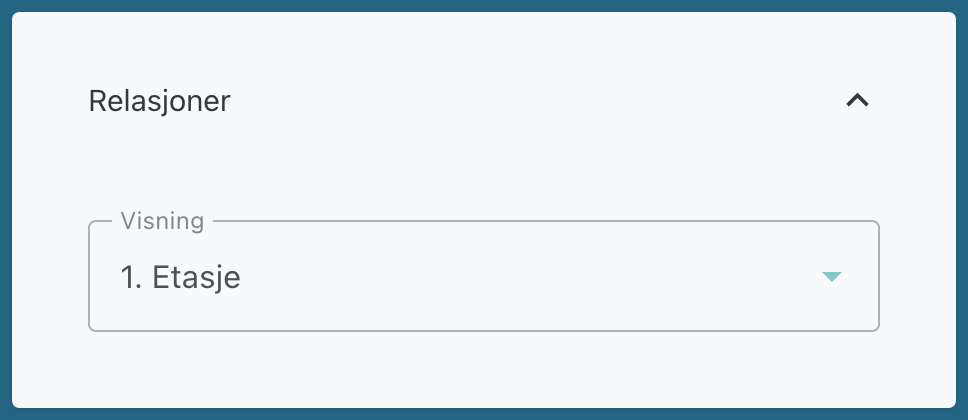
If desired, add a relationship to a view.
Save the alarm.
You can also use Excel to "Import Alarms."
Value Data Point
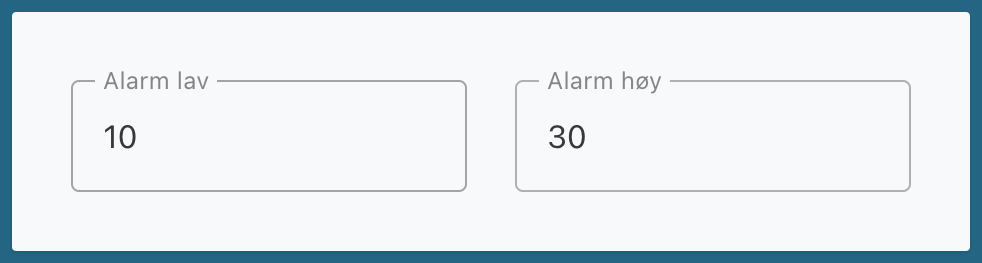
If the data point is of the value type, set the low and high alarm limits to determine when the alarm should be triggered.
Boolean variable
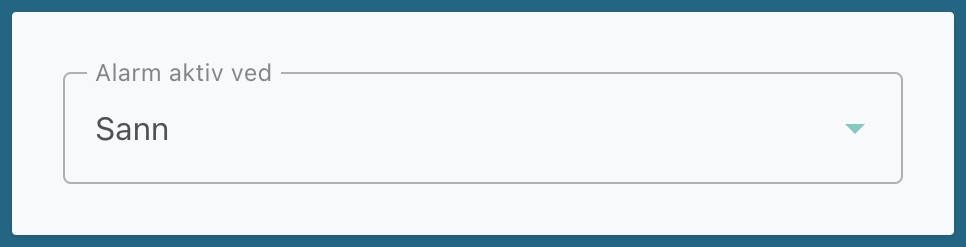
If the data point is a Boolean variable, select whether the alarm should be triggered when the value is true or false.
Text list for alarms
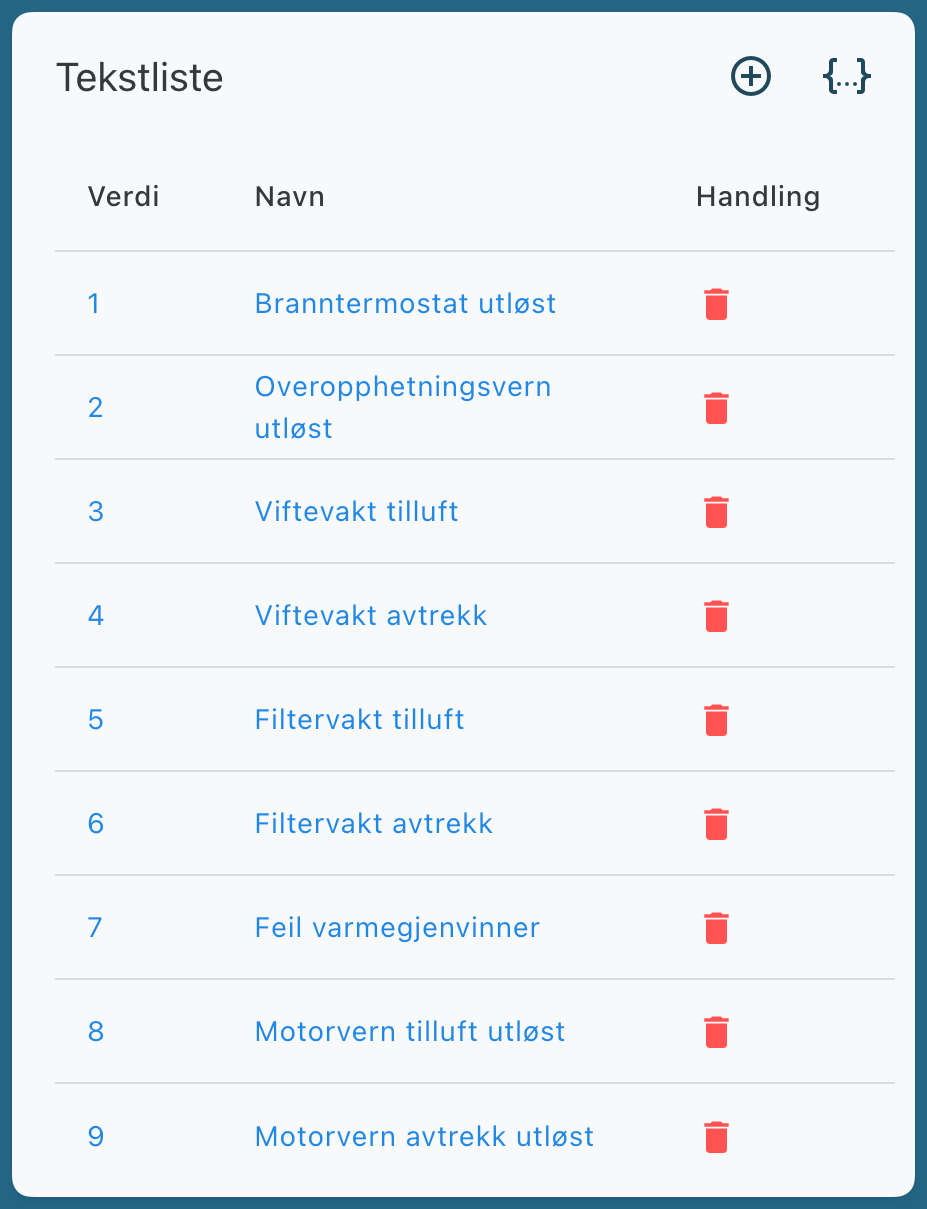
If the alarm is linked to an error code, you can use a text list to display a more understandable description instead of just the value itself.
Advanced settings
You can also configure:
Reset period
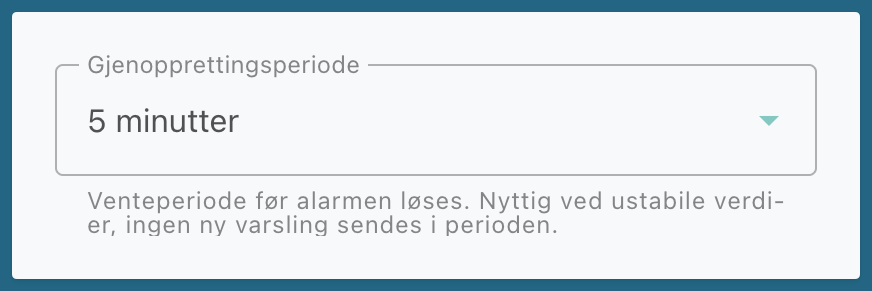
Configure a waiting period before an alarm is marked as resolved. Useful for unstable values that fluctuate rapidly.
The alarm remains active during the waiting period; no new notifications are sent, and the alarm is automatically resolved once the value has remained stable throughout the entire period.
Relationships
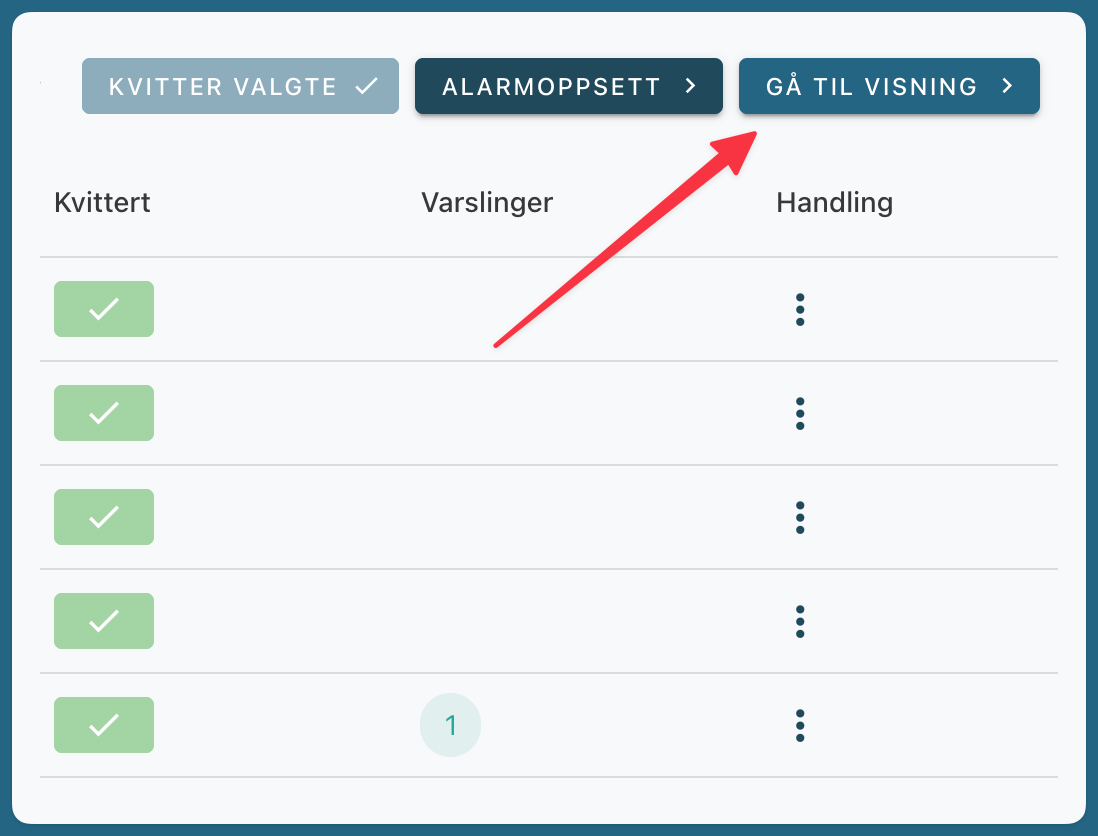
In the Relationships menu, you can link the alarm to a view. This allows the user to open the correct view directly from the alarm table.
Related Articles
Still need help? Ask the team