Add a view
Here's how to create a new view and choose the type of view you want to create.
Written By Evolo Support
Last updated 1 day ago
Here's how to do it
Go to Settings and select Views.
Click Add View.
Select a view type in the View Type field.
Choose whether you want to start with a blank view or from a template.
Enter a name for the view.
Check the "Set as default view" box if you want the view to open by default for the facility.
Click Create.
Fields
The dialog has two tabs: View and External Link.
View
View Type: Free Placement or Fixed Placement; see the explanation below. Appears only when you create a new view.
Empty View or Start from Template: Choose whether to start with an empty view or from a template. If you select Start from Template, choose the template from the Select a Template list. Appears only when you create a new view.
Name: The name of the view.
Set as default view: The view opens by default when you enter the building.
External Link
Use this tab when you want the menu item to open an external website instead of a view.
Name: The name of the link.
Link URL: the full address of the website, for example https://evolo.no. The link opens in a new tab.
Select the correct view type
When you create a view, you can choose between two types:
Free placement
Use free placement when you want to place elements freely on a canvas.
This works well for:
floor plans
process diagrams
technical overviews
Fixed Placement
Use fixed positioning when you want to create a view with a fixed layout.
This is well suited for:
dashboards
card-based views
standardized layouts across builds
In fixed layout, you can use custom cards and widgets such as Alarms, Indoor Climate, and Ventilation.
Choose how you want to get started
When you create the view, you can choose:
Blank View
Start with a blank view.Start from a template
Starts with an existing template.
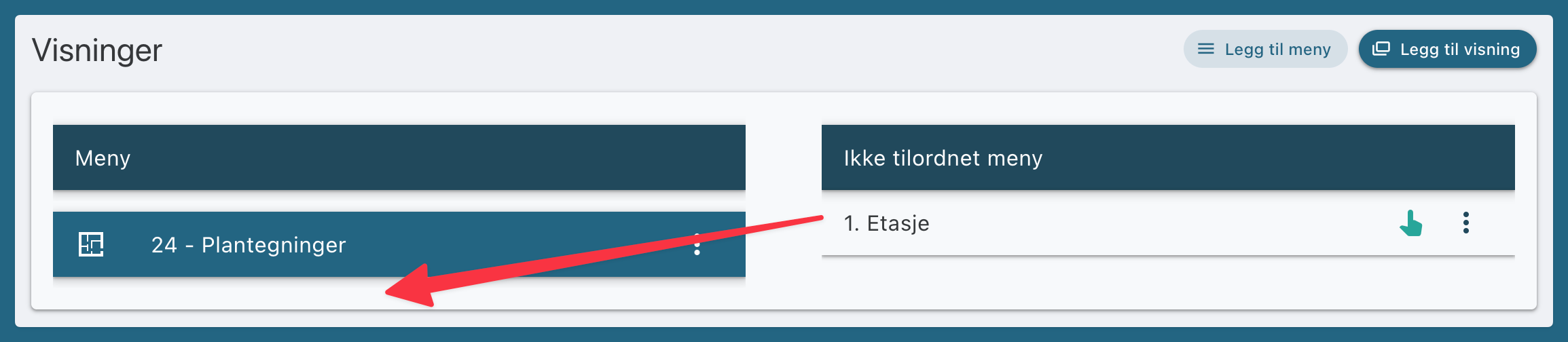
Assign the view to a menu
Drag and drop the view into the desired menu
Once the view is created, you can continue building it in the view builder →
Was this helpful?
Still need help? Ask the team