Create a dashboard for each building
You can set up widgets that display the status and summary for the building.
Written By Evolo Support
Last updated 18 days ago
What a dashboard can display
You can display widgets for:
Indoor
climate statistics by floorAlarms
: summary of active alarmsVentilation
status at the facilitiesCalendar
of operating hours and management of operations by facilityDamper overview
: air balance and damper openings per facility
Component Setup for the Dashboard
In order for Evolo to use your components in widgets, you must set their display type.
The Information dialog in the view builder displays all data points that are in use.
In the Components tab, you can link components in the view to widgets on the dashboard.
Here’s how to do it
Click the Components tab in the view builder; you must have the Installer role
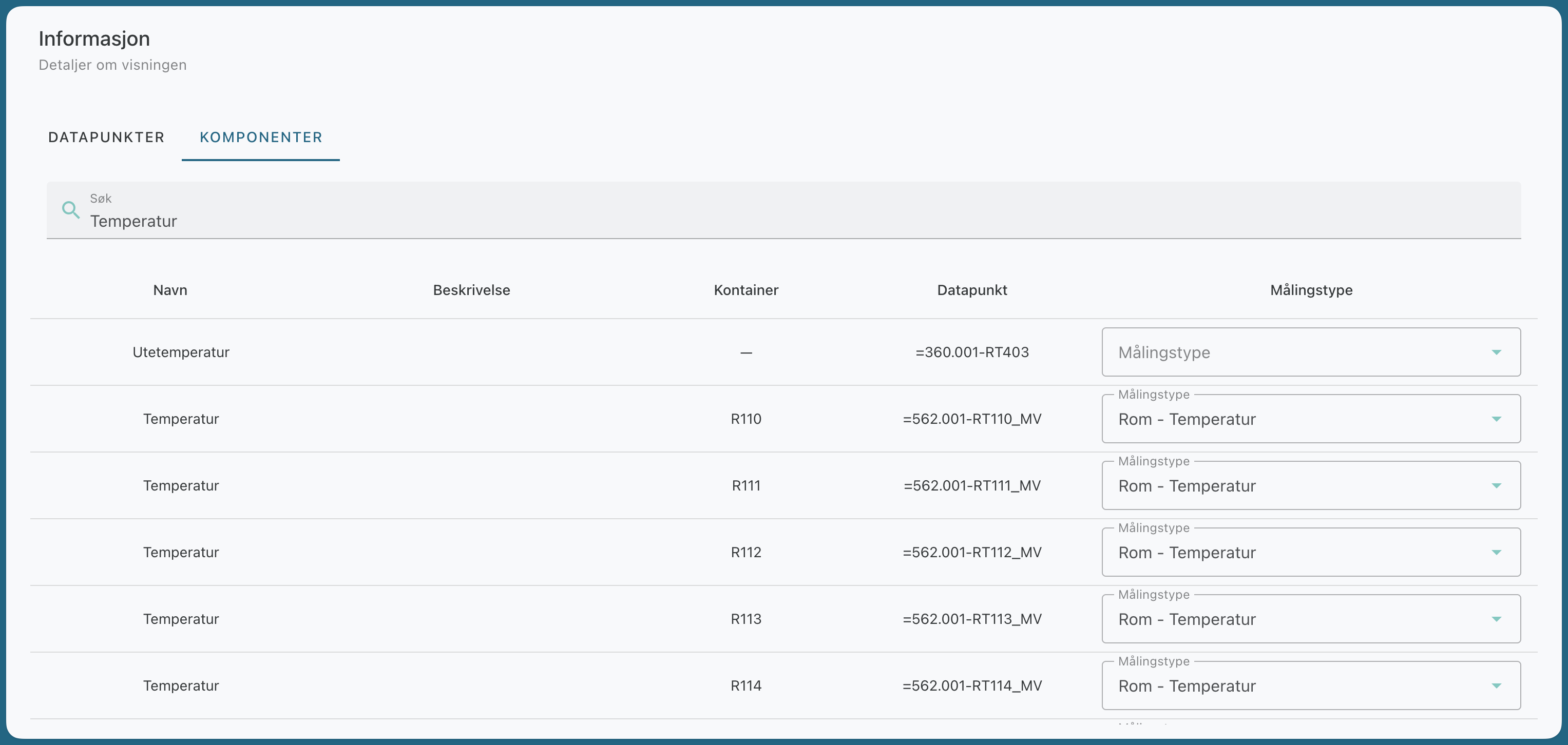
Select the Measurement Type for each component you want to display
Room - Temperature will instruct the system to display the value from this component/data point in the Dashboard’s Indoor Climate widget.
Create widgets
Create or open a view of the “Fixed Position” type.
Add the widgets you want to use via the side menu.
Go to view mode.
Verify that the widgets are displaying data.
Use the building dashboard when you want to give the user a quick overview of the status of a building without opening multiple detailed views.
Indoor Climate Widget
Displays a summary of the indoor climate in the building, including the average temperature and CO₂ level per floor. The colors provide a quick indication of whether the values are within the recommended range.
The widget uses the components you have set as the display type for indoor climate and has no settings of its own other than the name.
Alarms Widget
Displays a summary of active alarms in the building, grouped by priority. This lets you quickly see if anything requires attention.
Turn on "Show latest alarms" in the settings if you also want to display the most recent alarms.
Ventilation Widget
Displays the status of the ventilation systems in the building, including the controlled temperature and deviation from the setpoint.
Under “Data Mode,” you can choose whether the widget should display real-time data, data from the last day, or data from the last 7 days.
Calendar Widget
Displays the operating times for the calendar objects you select.
Under "Calendar Objects" in the settings, you can choose which objects the widget should display.
Controlling Operations from the Calendar Widget
The Calendar widget allows users to control operations directly from the dashboard—without access to the rest of the calendar. Anyone with access to the view can start or extend operations on the objects in the widget.
Start an operation when an item is idle, or Extend an operation while it is running
Select duration: +1 hour, +2 hours, until 10:00 PM, or for the rest of the day
The change is a one-time event—the regular schedule remains unchanged
Grant a tenant access to the view, and they can manage operations on their properties, but they won’t see anything outside of what you’ve selected on the map.
Dampers Overview Widget
Provides a comprehensive overview of the air balance. It shows the balance between supply and exhaust air, how much each damper is open, and a brief insight hint.
You can choose between two display modes:
Overview
shows only the dampers and the air balanceOptimization
highlights control dampers, sorts by opening, and provides a hint about fan pressure
To set up the widget:
Add a Damper Overview card in the view builder.
Add one or more supply and exhaust dampers.
Select Type (Supply or Exhaust), and give the damper a name if you wish.
Select a data point for Airflow (m³/h).
Opening (%), Boost (%), Vmin (m³/h), and Vmax (m³/h) are optional.Save.
Colors and Hints
Hover your mouse pointer over the question mark at the bottom of the card to see what the colors mean. A damper regulates best when open between 50 and 90%. Red means the damper is almost closed or almost fully open, and gray means it is closed.
Dampers set to minimum airflow—for example, at night or in empty rooms—may be at 10–20% and will appear red. This is normal.
In Optimization mode, the card provides a hint about the fan pressure, based on the damper with the widest opening.
Related articles
Was this helpful?
Still need help? Ask the team