Create an alert based on logged data points
Here's how to create an alert based on the history of logged data points in Evolo. This type of alert can be used, for example, to detect anomalies in energy consumption.
Written By Evolo Support
Last updated About 2 months ago
Here's how to do it
Go to Configuration and select Alarms.
Open the Setup tab.
Click Create New Alarm and select Log.
Select one or more log points.
Enter threshold values for when the alarm should be triggered.
Select the time period for which the alarm should be monitored.
If desired, add a relationship to a view.
Save the alarm.
Log – Value
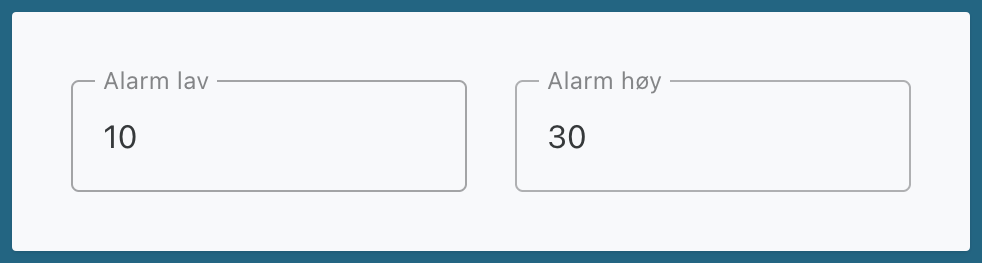
Enter the low and high alarm limits. These limits determine when the alarm should be triggered
Log – Period
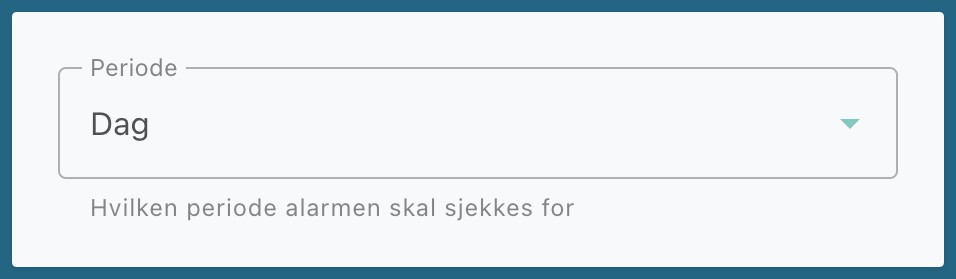
Select the period for which the alarm should be checked.
If you select Day, the alarm checks the total value for the logged data point from the last day.
Advanced settings
You can also configure:
Relationships
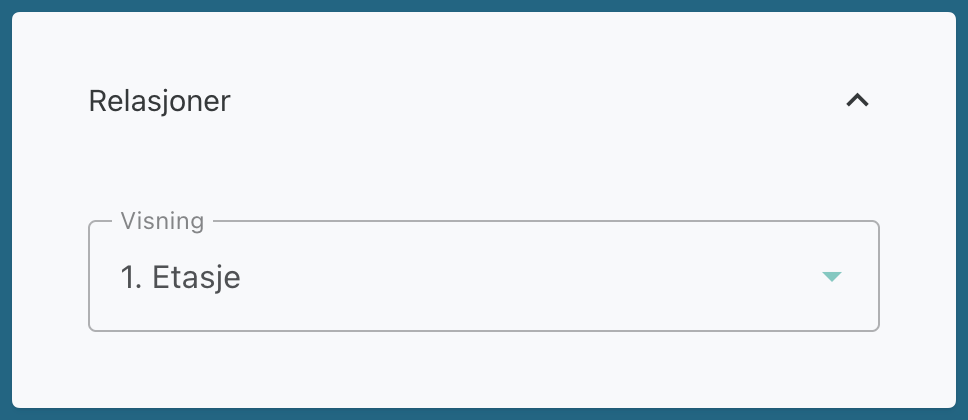
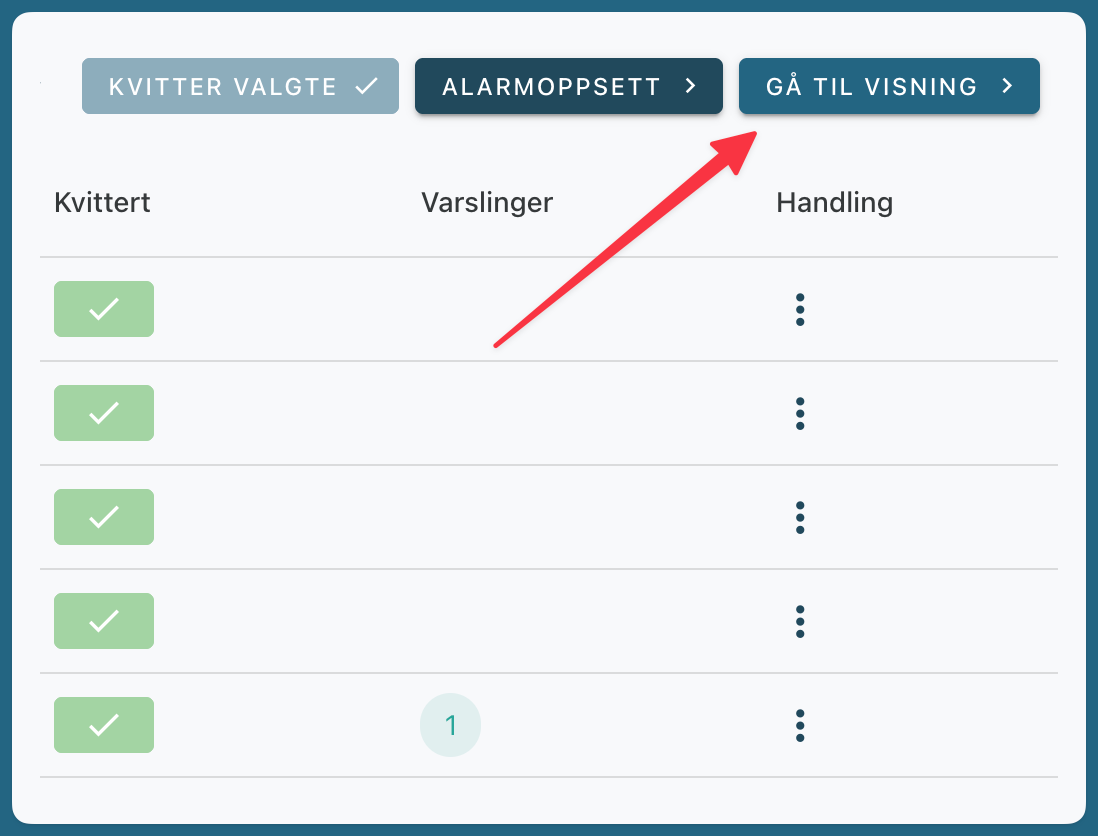
In the Relationships menu, you can link the alarm to a view. This allows the user to go directly to the correct view from the alarm table.
Related Articles
Create an alarm on a data point
Create alerts
Create notification channels
Import Alarms from Excel
Still need help? Ask the team