Create a deviation in a recurring event
Here's how to create an exception for a recurring event in the calendar.
Written By Evolo Support
Last updated 2 months ago
An exception is used when an event is not supposed to follow the usual pattern, or when you want to make a temporary change without altering the entire series.
Exclude Holidays
You can set a recurring event to skip holidays.
Open the recurring event.
Go to the Exceptions tab.
Check the box to exclude holidays.
When this option is selected, the event will automatically be skipped on holidays. If you still want an activity on that day, you can create a separate one-time event as an exception.
Add fixed exceptions
You can also enter fixed dates on which the event should always be skipped.
Open the recurring event.
Go to the Exceptions tab.
Enter the dates that should be exceptions.
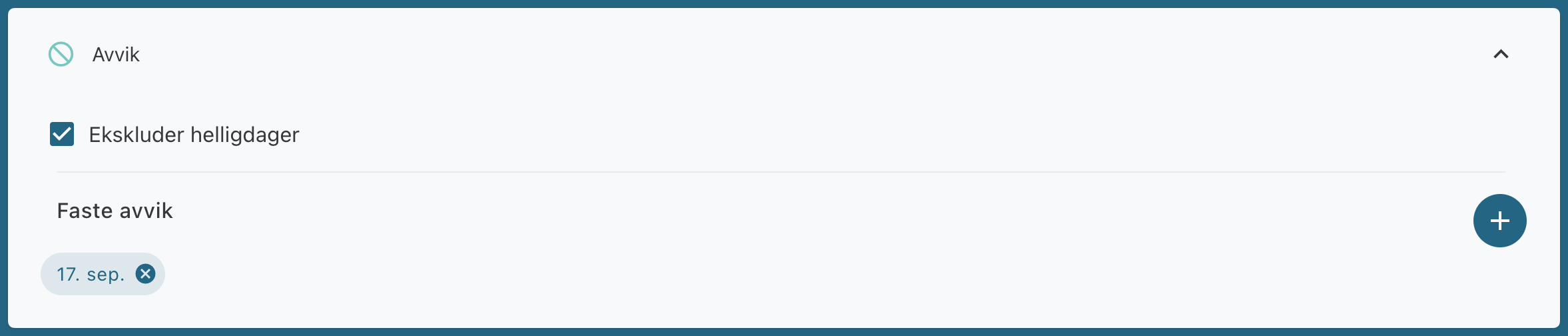
This can be used, for example, for summer vacation, regular closing days, or scheduled maintenance. The event will then automatically be skipped on the selected dates.
Edit a recurring event
When you edit a recurring event, you have several options:
Change only the selected day
The selected day is removed from the recurring series. A new one-time event is then created with the updated times.Change all recurring events
The entire series is updated with new start and end times.Change within a period
Only events within the selected period are updated.
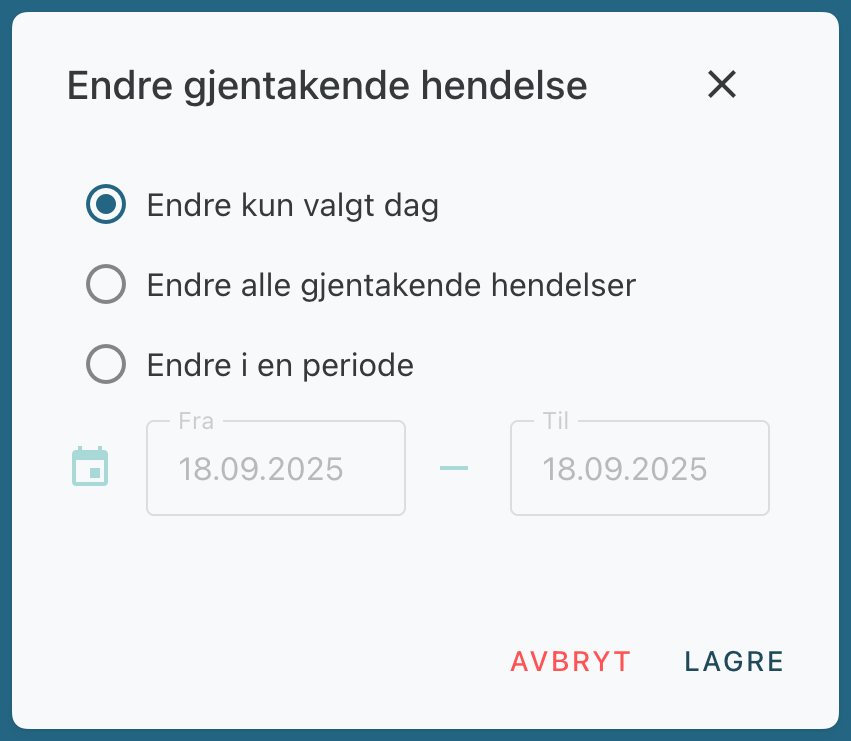
Use "Exceptions" when you want to make a change for a single day or a specific period without affecting the rest of the series.
Was this helpful?
Still need help? Ask the team