Local Screenings at Evolo Gateway
Monitor and control the system from screens inside the building, even when the building loses its internet connection. The screen connects directly to the gateway and responds more quickly.
Written By Evolo Support
Last updated 9 days ago
Before You Begin
You need the Installer role in the building.
The gateway must be connected to Evolo when you select views so that it can retrieve the configuration.
Your PC or monitor must be on the same network as the gateway and able to access it on port 8080.
Select views
Open the gateway
Go to Configuration and select Gateway. Open the gateway and select the Local Views tab.
Select views
Check the boxes next to the views that should be accessible locally. Enable Write Access for views where users need to be able to change values, such as setpoints. Without Write Access, the view is read-only.
Save
Click Save. The first time you do this, Evolo generates a strong local password. The gateway receives the views within a few seconds.
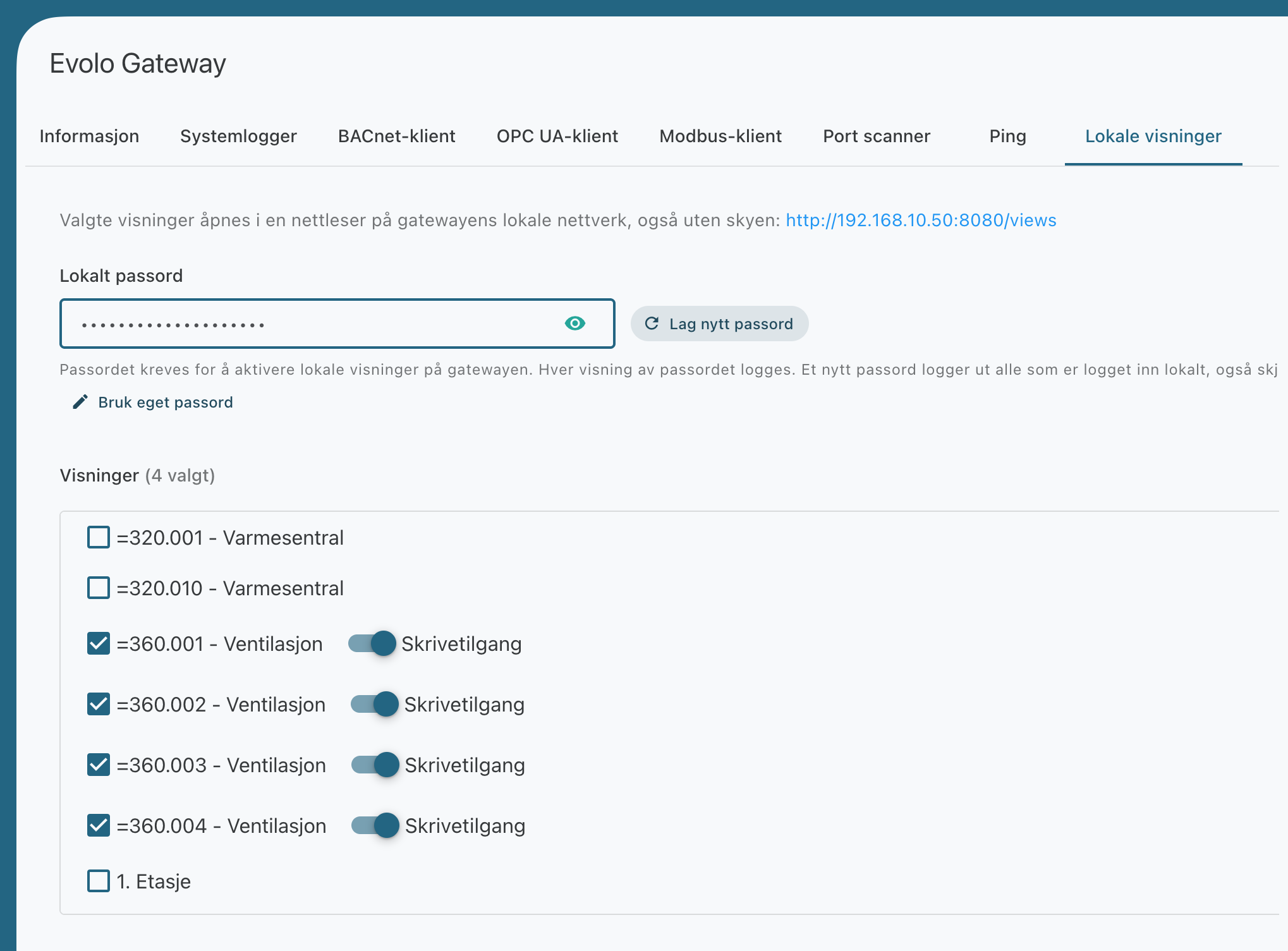
A view can only be selected when all of its data points are located on this gateway. Views with data points on other gateways are listed under “Views that cannot be selected,” along with the names of the gateways they use.
Local Password
The password protects all local tools on the gateway.
View and copy: Click the eye icon in the password field to view the password, and copy it using the button next to it. Every time the password is displayed, it is logged.
Custom password: Click Use custom password and enter a password of at least 8 characters.
New password: Click "Create new password."
A new password will log out everyone who is logged in locally, including screens with “Remember this screen” enabled.
Open the displays locally
Go to the address
Open http://<gatewayens IP-adresse>:8080/views in a web browser on the building’s network. If the IP address has been entered under the Information tab, the link will appear in the Local Views tab.
Log in
Enter the local password. Check the Remember this screen box on fixed screens to keep them logged in until the password is changed. Otherwise, the login lasts for 8 hours and is renewed as long as the screen is in use.
Select display
The displays are listed under the same menus as in Evolo. Displays that are not in a menu are listed under “Other.”
Set up a touchscreen or information screen
In kiosk mode, the screen displays only the view, without the menu bar.
Copy the link
Open the view list from a PC on the building’s network, and click Copy Link next to the view. The link ends with ?kiosk=1.
Open the link on the screen
Open the link in the browser on the screen. You may want to configure the browser to open it in full-screen mode when the screen starts up.
Log in once
Enter the local password. Remember that this screen is already checked, so it will remain logged in until the password is changed.
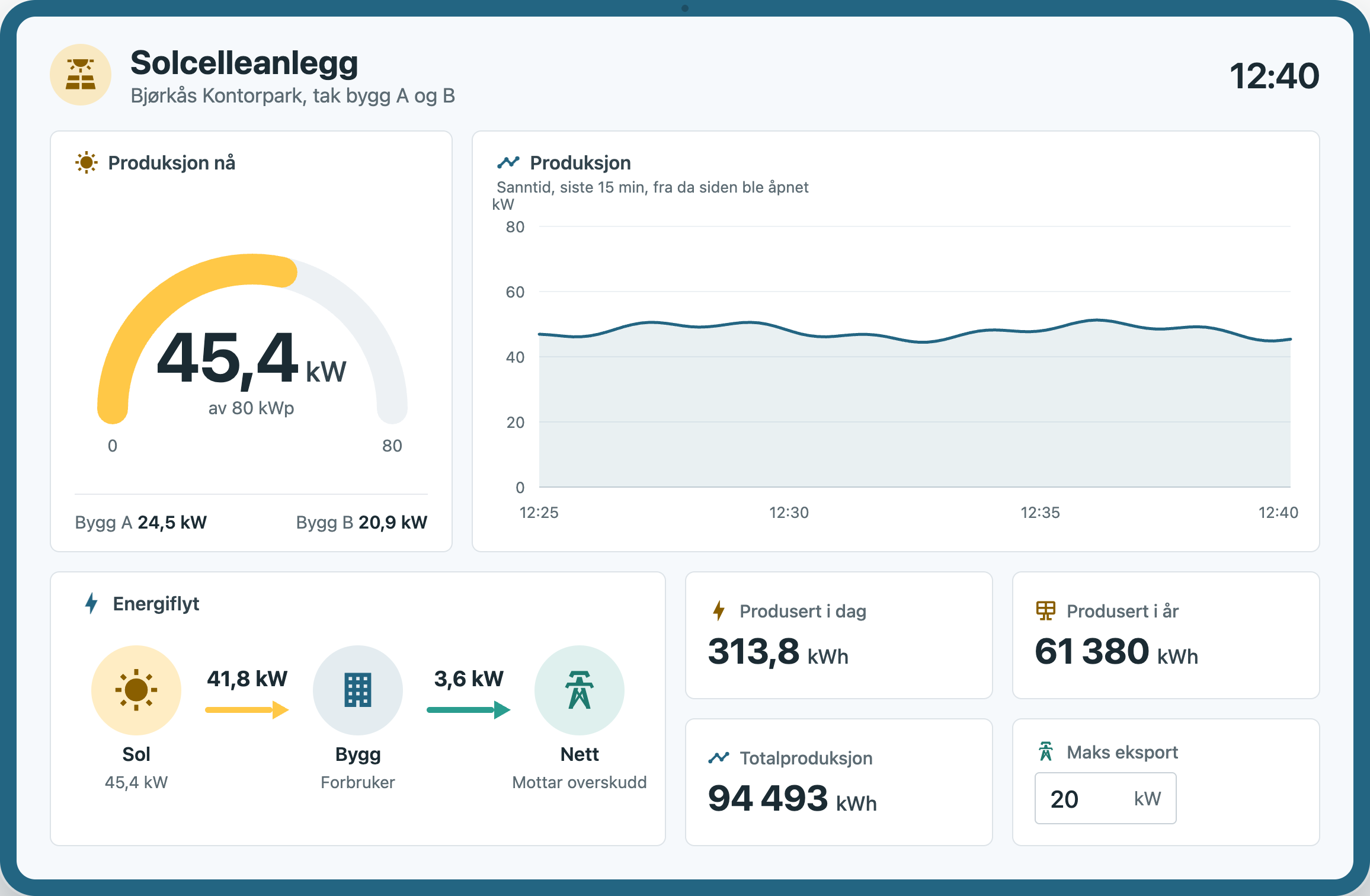
Touchscreen or information screen? Enable Text Access for the display if operating personnel need to change setpoints or start and stop equipment on the screen. On an information screen that is only meant to display values, leave it disabled.
You’ll find this on the gateway
Displays: Values are updated continuously. Click on a logged value to view a real-time graph covering the last 15 minutes, starting from when the page was opened.
Alarms: active alarms, alarms awaiting the delay period, and alarms that have not yet been sent to Evolo. Alarms are acknowledged in Evolo.
System Log: The gateway’s log files, when logging to disk is enabled. See Read the Evolo Gateway system log (Read the Evolo Gateway System Log).
BACnet Client: A tool for discovering BACnet devices and reading and writing their values directly on the building’s network.
You log out by clicking Log Out in the upper-right corner.
This does not work locally
History: The gateway does not have the log data. Graphs in the views show real-time values.
Old HVAC figures: displayed as “Old figure.” Replace them with the figures under HVAC in the view builder.
Remove local views
Uncheck the boxes for the views and click Save. The
password is retained and continues to protect alarms, the system log, and the BACnet client. If the gateway is removed from the building, both the views and the password on the gateway are deleted.
Was this helpful?
Still need help? Ask the team