How to Use Reporting
View an overview of the reports generated for the selected building in Evolo.
Written By Evolo Support
Last updated 15 days ago
Under "Reporting," you'll find pre-generated reports for the building. You can open a report, edit the content directly on the screen, and either download it as a PDF or schedule it to be sent out automatically.
Here’s how to do it
Each card in the catalog represents one report type. On the card, you’ll also see scheduled sendouts and a history of previously generated PDFs.
Select a building.
Go to Reporting in the menu
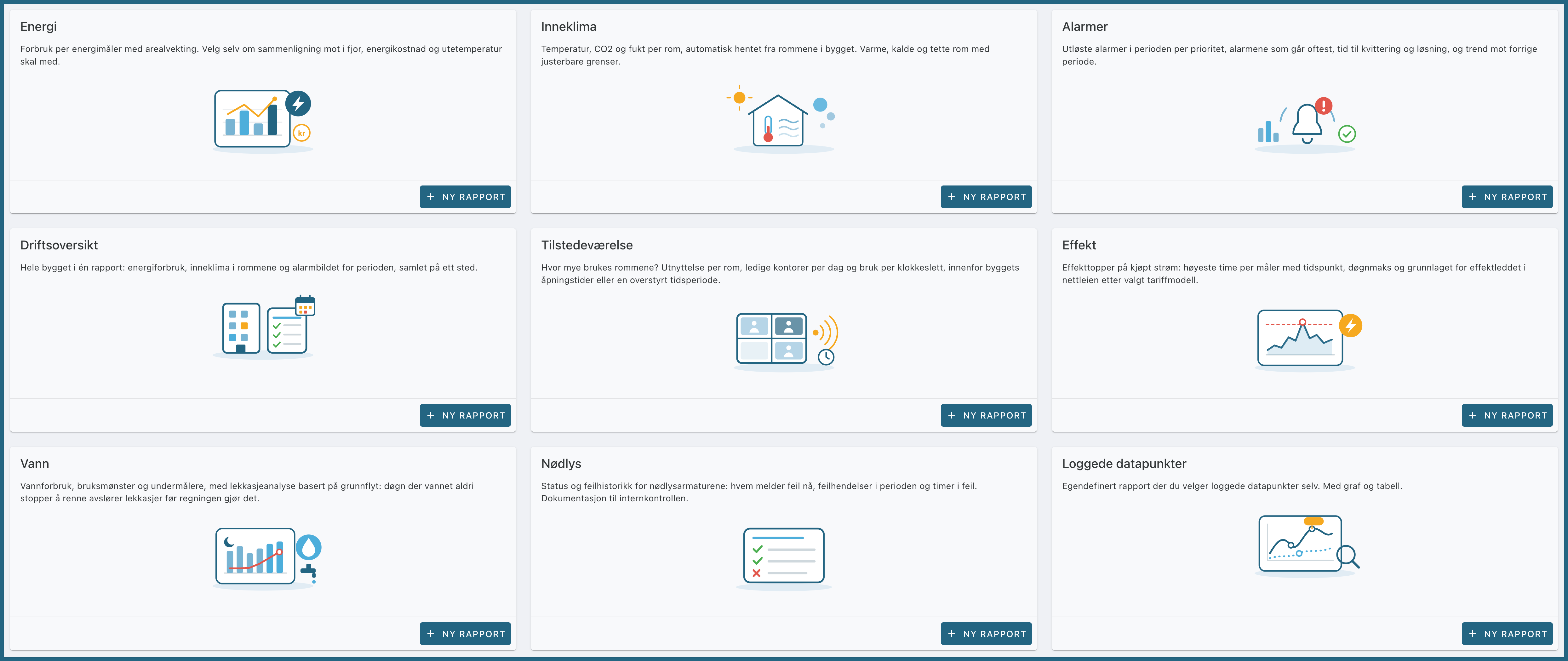
Open and customize a report
Click “New Report” on the desired card.
Adjust the content at the top. The preview updates automatically:
Data period: for example, Last Month or Last Year.
Resolution: how finely the data is grouped (5 min, Hour, Day, Week, Month).
Report date: set to today’s date by default. Select a past date to view the report as if that date were today.
Chart and table: Choose whether the report should display a chart, a detailed table below it, or both.
The report type also has its own settings. View all reports.
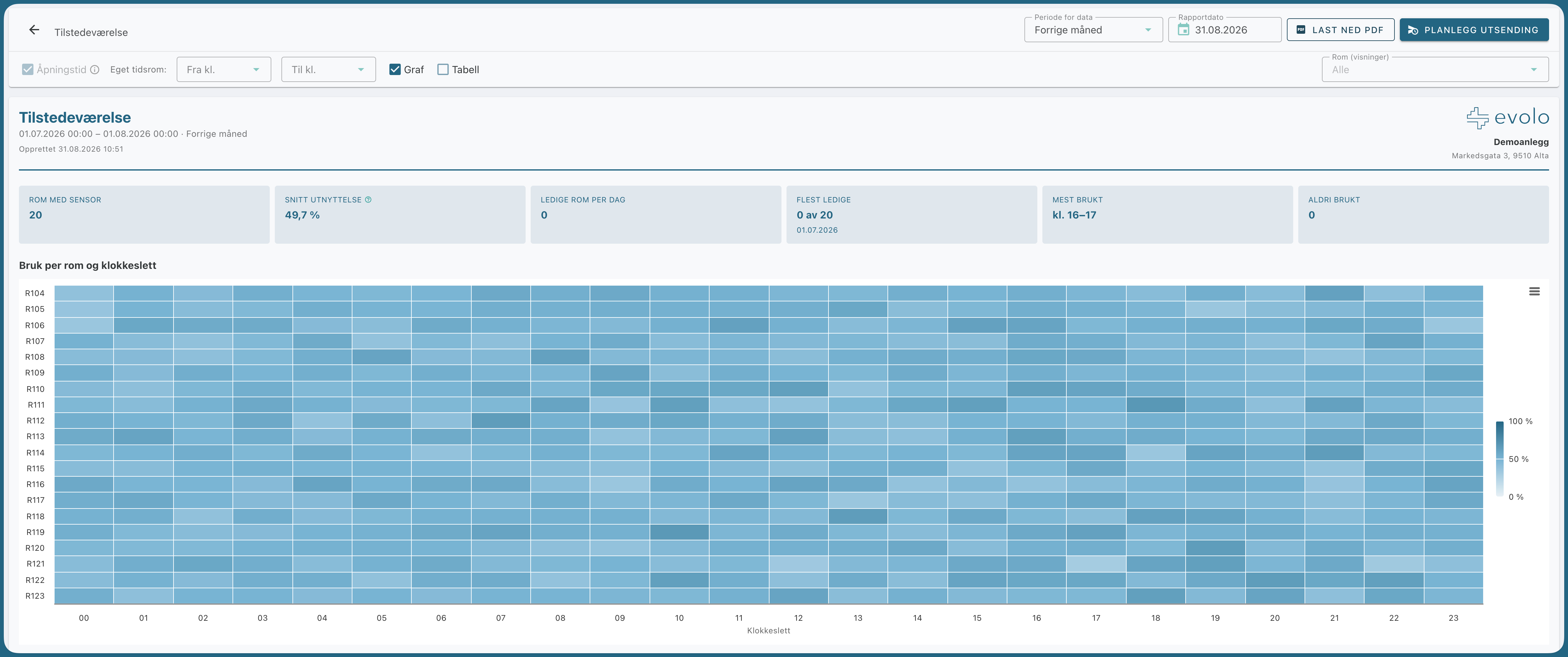
Download as PDF
: Click “Download PDF.” The button is grayed out until you’ve selected enough content to generate a report.
Schedule automatic delivery
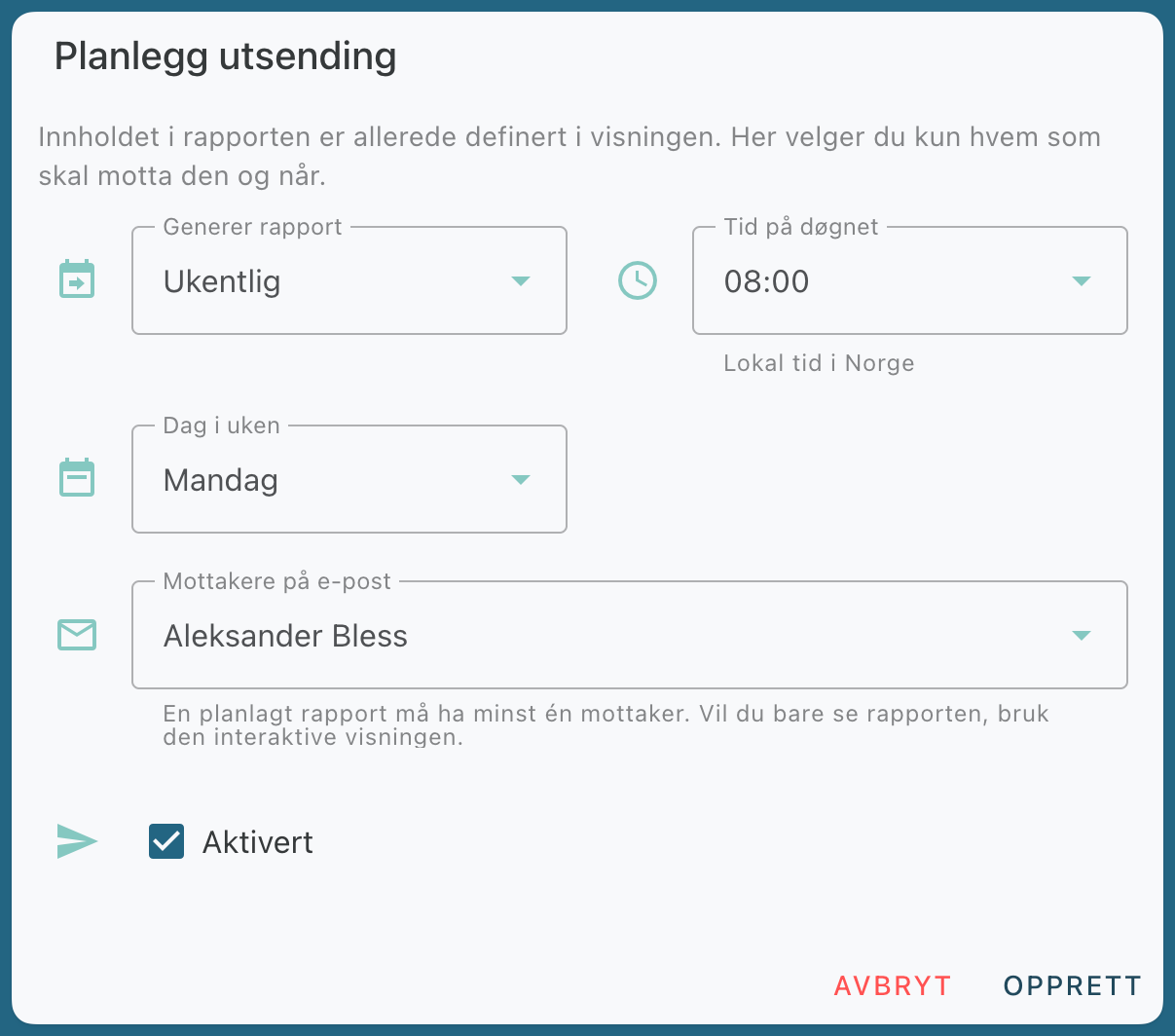
Schedule an automatic email send with a PDF of the report attached.
Click "Schedule Send."
Select the frequency (daily, weekly, monthly, or annually), day, and time.
Select at least one notification channel. This is required. A report without a channel will not be sent or generated.
Save.
Scheduled sendings are displayed on the card in the catalog, where you can also open, edit, or delete them.
Note: Room-based reports (Indoor Climate, Occupancy, and Emergency Lighting) automatically identify rooms based on the measurement type of the components in the view. If no measurement type is set, the report will be empty. See Set the goal type in the view builder.
Still need help? Ask the team