FDV: Buildings, Systems, Documents, and Operation Logs
FDV (Facility Management, Operations, and Maintenance) consolidates the building's operational documentation in one place in Evolo.
Written By Evolo Support
Last updated 4 days ago
Here you will find building data and contact information, descriptions of the technical systems, drawings and documents, and the operational log of nonconformities and corrective actions.
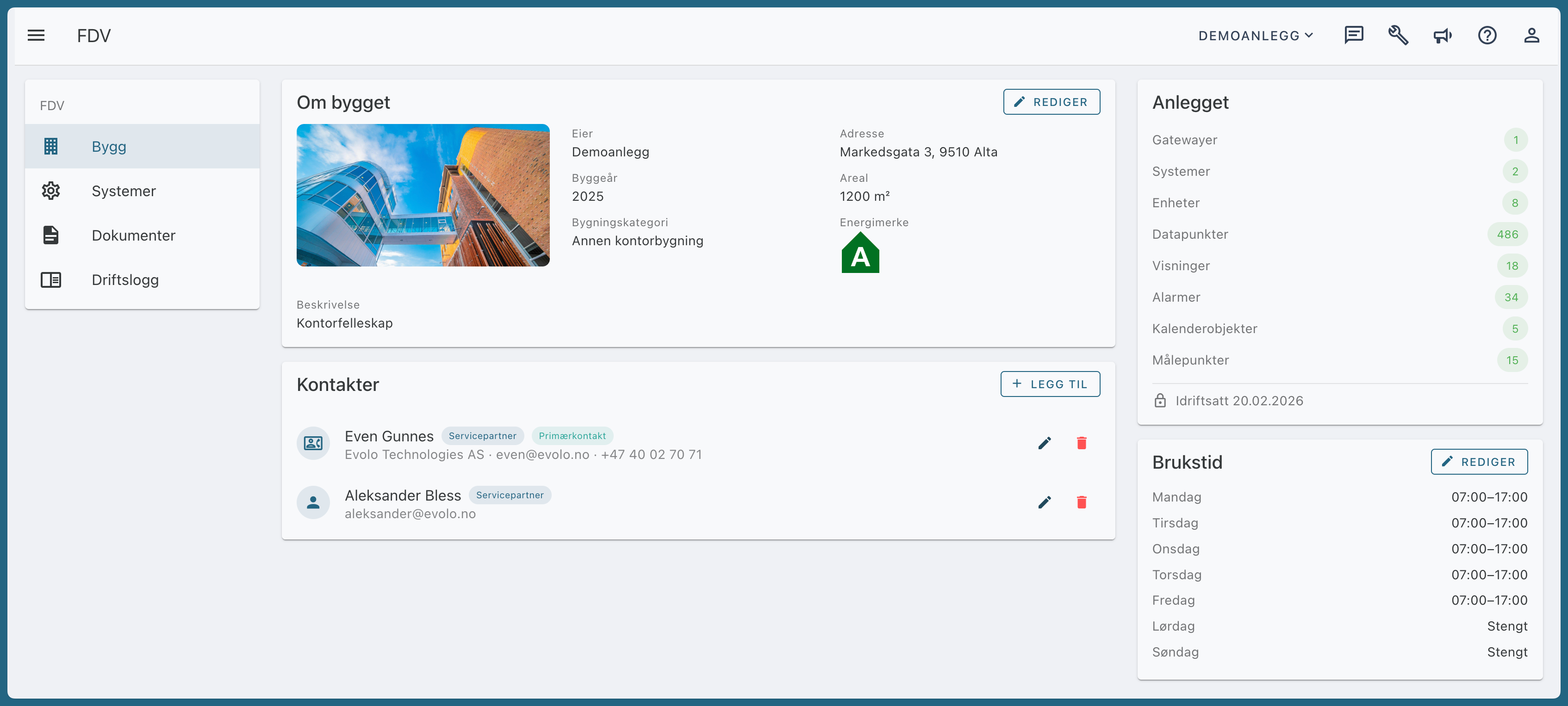
Building
The Building page displays an image and description of the building, along with the owner, building category, year built, floor area, and energy rating.
Under “Facility,” you can see how many gateways, systems, devices, data points, views, alarms, calendar items, and energy flows the building has.
How to edit building data
Open “Buildings”
Go to Operations and Maintenance and then Building. Click Edit.
Enter building data
Enter the building category, year built, area, and energy rating, as well as a description and photo of the building if applicable. Click Save.
Usage Time
Operating hours are the times when people are in the building. This information is used in insights, reports, and occupancy tracking. On the Usage Time card, click Edit and turn on Enable Usage Time. Select the days the building is in use, and choose the times under From and To. Days that are turned off appear as “Not in use.” Click Save.
Contacts
Contacts show who owns, operates, and supplies the building. The primary contact appears when users tap the phone icon (Contact Information) in the upper-right corner of the building views.
Tap Add on the Contacts card.
Select where the contact comes from:
From the organization: a contact card already in use at another building in the organization. Requires that you are a member of the organization and have access to Members.
Building user: someone who has access to this building, either directly or through a user group. The name and email are retrieved from the user. Requires access to Users on the building. If the same user is added to multiple buildings, the same contact card is used.
External contact: Enter the name, email, company, phone number, and, if applicable, a note.
If applicable, select a Role, such as Building Owner, Operations Manager, or Service Partner.
Check the Primary Contact box if the contact should appear next to the phone icon.
Click Save.
The contact cards belong to the organization. If you edit a card, it is updated across all buildings where it is used. A card used across multiple buildings can only be edited by members of the organization.
If the building has no primary contact, the contact information from the organization page will appear behind the phone icon.
Same contact across multiple buildings
If the same contact is used across multiple buildings, add them to all of them at once from Projects. SeeAdd the same contact to multiple buildings
Systems
A system is a technical installation in the building, such as “=360.001 Ventilation System” or a heat pump. The list shows the code, name, and category for each system.
The installer creates the systems under Konfigurasjon → Systemer; see “Add a system.”
Open a system to view three tabs:
Operational Information: operational description, maintenance, location, manufacturer, and year of installation.
Data Points: all data points associated with the system, including unit, address, and whether they are logged or have an alarm.
Documents: the files in the system’s folder under Documents, including files in subfolders.
To edit the system’s operational, maintenance, and repair (O&M) information, click Edit on the system to change the category, location, manufacturer, year of installation, operational description, and maintenance details.
Documents
The documents are stored in folders. Tap the arrow next to a folder to show or hide its subfolders. At the top of the file list, you’ll see your current location, such as “All Documents › Systems › 360.001 Ventilation,” and you can tap to navigate back up.
New Folder: Create folders and subfolders wherever you need them, including within a system folder.
Upload files: Drag and drop or select one or more files, select a folder, and tap Upload. Files can be up to 25 MB, such as PDFs, Word documents, Excel files, images, and DWG/DXF drawings.
Open: Tap the file name. PDFs and images open in a new tab; other files are downloaded.
Download, move, or delete: use the three-dot menu on the file. Under Move to, select the folder to which the file should be moved.
System folders cannot be renamed or deleted. A folder can only be deleted when it is empty, with no files or subfolders. If a system is deleted, the folder is also deleted, and the files are moved to the top level.
Operations Log
The operation log is the building’s log of deviations, actions, and events. It is used during the trial operation and continues as a regular operation log afterward.
Types of entries:
How to create an entry
New entry
Go to FDV and Operations Log. Click New Entry.
Fill out the entry
Select the type, enter a title and description, and, if applicable, select the system it applies to. For non-conformities and corrective actions, you can also select Responsible for Closure from the contact cards for the building and set a “Deadline for Closure.” Click Save.
The Responsible / Deadline column displays the deadline in red with “(overdue)” when a non-conformity has not been resolved on time.
Use the filters All, Open, Closed, and Tests, or the search field, to find entries.
Nonconformities are resolved in two steps
The Status column shows the status of a nonconformity: Open, Resolved, Rejected, or Approved. Hover your mouse over the status to see who did what and when.
The installer corrects the issue, clicks Mark as Resolved, and, if necessary, notes what was done. The text appears on the same line as the issue.
The person who reported the deviation checks it and clicks “Approve,” or Reject with a reason if it hasn’t been resolved. A rejected deviation remains open until it is corrected again.
The deviation is closed once it is approved. An entry cannot be changed after it has been resolved. If something is incorrect, create a new entry.
Test Run and Automatic Entries
While the test run is in progress, the period is displayed at the top of the operation log. During this period, Evolo creates automatic deviations when a test is completed with a deviation. The title links to the test entry to which it applies.
When the installer ends the trial run, the entries from that period are locked and marked with a lock icon. The log continues as a regular operation log.
Who Can Do What
FDV has two permissions:
Read FDV: You can view everything in FDV.
Edit FDV: You can also modify building data, contacts, and documents; make entries in the operation log; and update operational information for the systems.
To mark a deviation as resolved or delete an entry that has not been processed, you must have the Installer role. Approve and Reject can be performed by the person who reported the deviation or by anyone with this permission.
If you lack access, contact the installer or the building administrator.
Was this helpful?
Still need help? Ask the team