Manage Organizations and User Groups
Manage users, permissions, and user groups in your organization.
Written By Evolo Support
Last updated 6 days ago
An organization groups users and buildings. User groups are used to associate users with buildings and views.
To create a new organization
Click the building name in the upper-left corner.
Click “Change Organization” and select “New Organization.” If you’re a member of only one organization, click “New Organization” directly.
Organization
An organization brings together users and buildings.
You can use the organization to:
invite users
assign users to groups of buildings
grant users the appropriate permissions.
Users
On the users page, you manage who has access to the organization.
Here you can:
invite new users
change permissions
remove users.
Permissions
Evolo distinguish between different types of permissions:
Projects
Read: can open the project page
Manage: can create and update projects
Organization
Manage organization: can change the logo, contact information, and the AI toggle on the organization page
Read users: can view the user page
Manage users: can grant and revoke permissions, and delete users
Invite users: can send invitations
User Groups
Read: can open the user group page
Manage: can create and modify groups
License
Read: can view the license page.
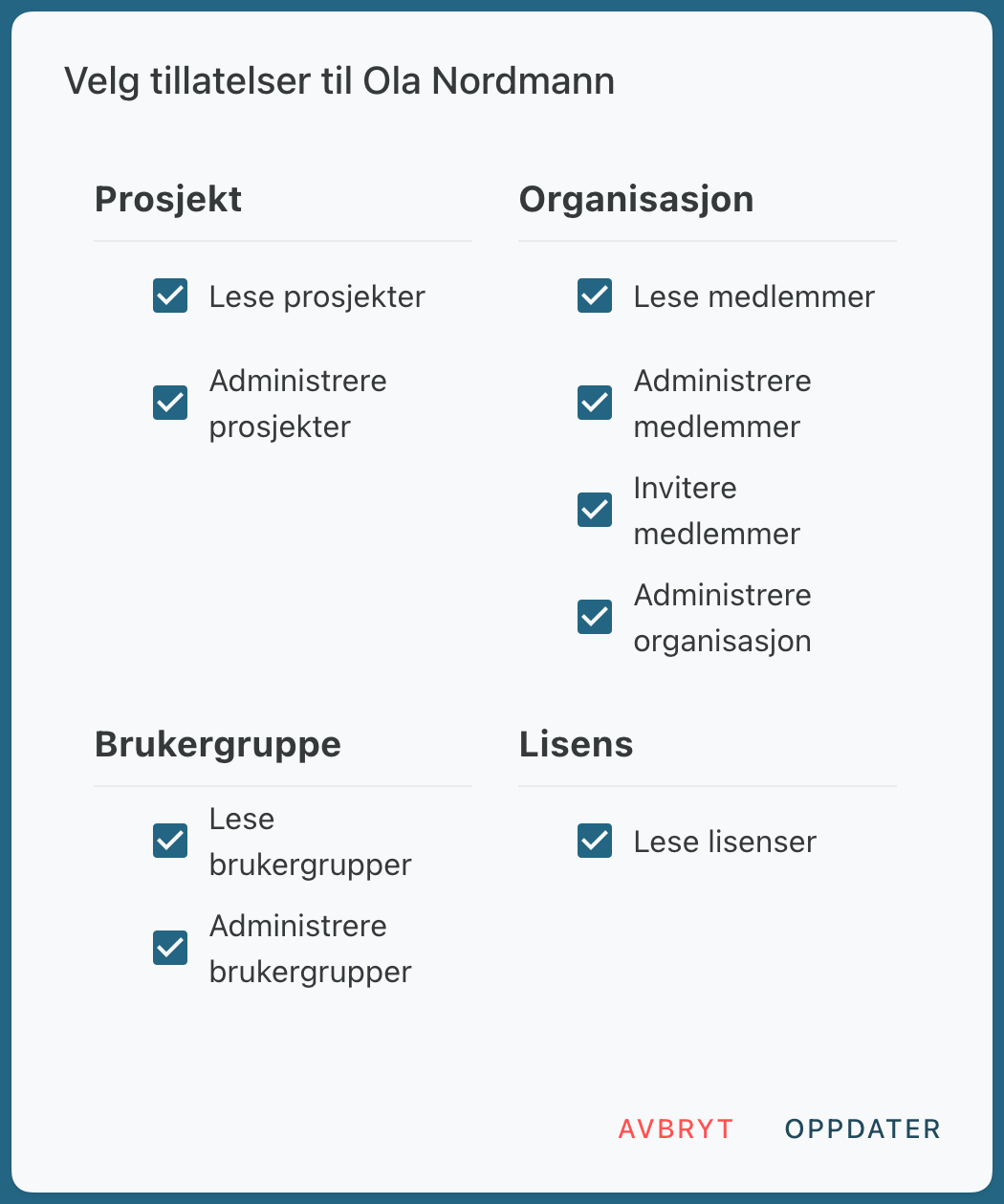
Permissions in an Organization
User Groups
A user group brings together users and buildings.
You can use user groups to:
invite users within the organization or via email
add buildings
select which views the group should have access to.
If a user has access to the same building through multiple groups, the highest role and its associated views always apply.
Was this helpful?
Still need help? Ask the team