Connect Evolo to ChatGPT or Claude
Evolo can now be connected to AI tools such as ChatGPT, Copilot, and Claude.
Written By Evolo Support
Last updated 1 day ago
This means you can ask questions about your buildings using everyday language and get answers based on the data in Evolo. You won’t have to manually look up values, compare graphs, or analyze historical data.
Ask what you actually want to know: What’s happening, why is it happening, and what should be followed up on?
Once the connection is set up, the assistant can read information from Evolo and help you find answers without having to manually navigate the system.
Access is read-only. The assistant cannot yet change settings, enter values, or create data in Evolo.
What is MCP?
MCP stands for Model Context Protocol. It is a standard that allows AI tools to connect to external systems in a controlled manner.
For Evolo, this means that an AI assistant can use approved tools to retrieve information from Evolo, such as buildings, alarms, data points, energy consumption, history, and facility management documentation.
Before you begin
You’ll need:
An Evolo account with access to the buildings you want to ask about.
An AI assistant that supports MCP, such as Claude, ChatGPT, or Microsoft Copilot. (ChatGPT requires a Plus, Pro, Business, Enterprise, or Edu plan.)
Get started
Here’s how to get started:
Open MCP
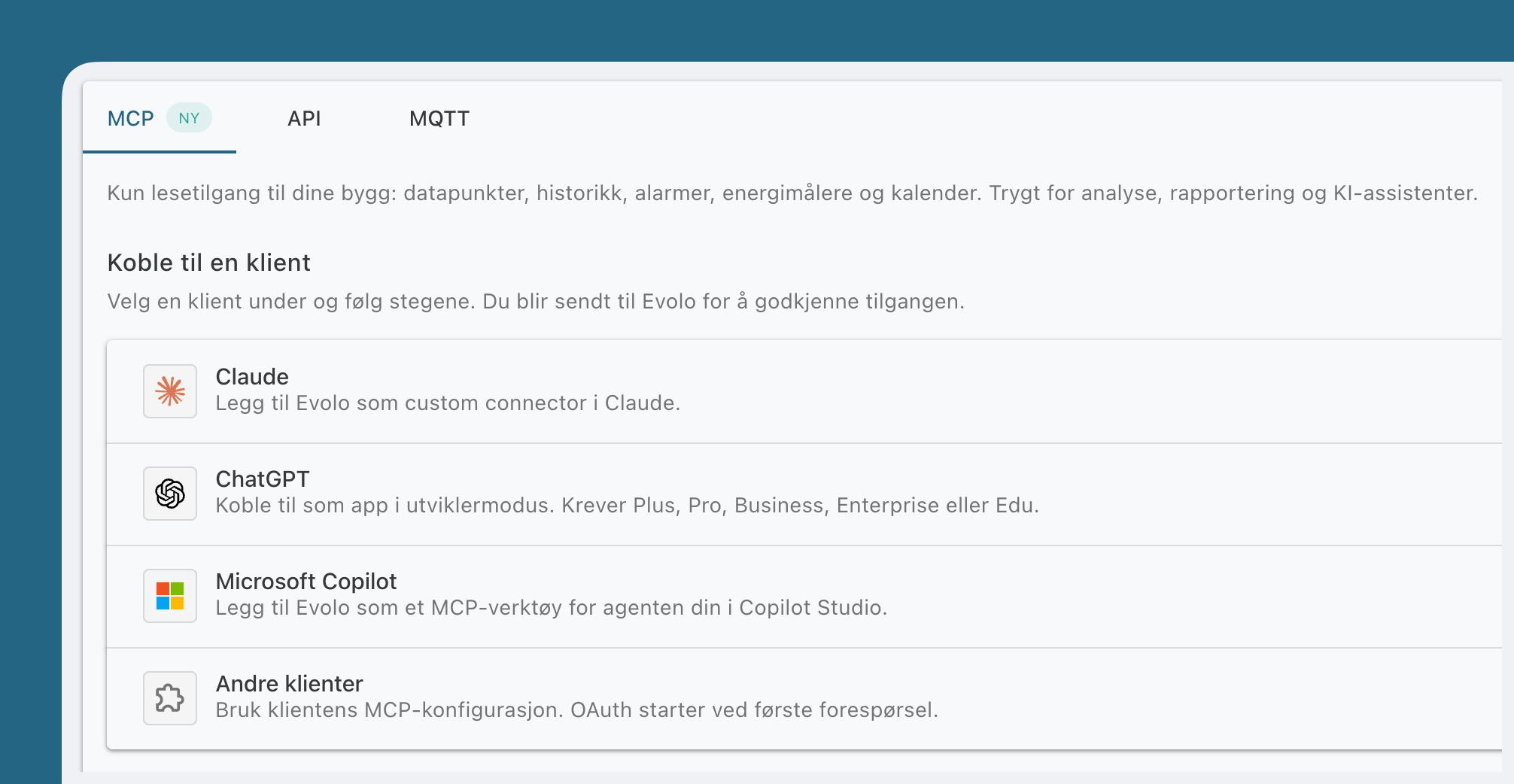
Click your initials in the top-right corner and select Integrations. Select the MCP tab and choose which assistant you want to connect to.
Follow the steps
Follow the steps for Claude, ChatGPT, or another MCP-compatible client.
Authorize access
Sign in with your Evolo account. Authorize access on the consent page.
Go to Settings → Connectors in Claude.
Select Add → Add custom connector.
Name the connector “Evolo.”
Paste: https://app.evolo.no/mcp/evolo into the Remote MCP Server URL field
Click Add.
You’ll be redirected to Evolo to authorize access.
Team and Enterprise: An owner first adds it under Organization settings → Connectors → Add → Custom → Web.
Then, each user finds Evolo under Settings → Connectors and clicks Connect.
Go to Extensions in ChatGPT, tap the + icon, and select Add Custom MCP Server. If you don’t
see Add Custom MCP Server, enable Developer Mode under Settings → Security and Login.Name the server “Evolo.”
Select Server URL under Connection and paste: https://app.evolo.no/mcp/evolo
Select OAuth as the authentication method, check the box next to “I understand and want to continue,” and click “Create as a plugin.”
Log in with your Evolo account and authorize access on the consent page.
ChatGPT may display the connector with the status “developer mode” / “development.” This is completely normal for a custom connector. It simply means that it hasn’t been published in OpenAI’s catalog yet.
Open Copilot Studio and select your agent.
Go to Tools → Add Tool → New Tool → Model Context Protocol.
Fill in:
Server name:
EvoloServer description: Read access to building data in Evolo: data points, history, alarms, and energy consumption.
Server URL: Paste: https://app.evolo.no/mcp/evolo
Authentication:
OAuth 2.0with the Dynamic discovery type
Click Create. Select Create a new connection, authorize access in Evolo, and click Add to agent.
(See also Microsoft’s own guide: Connect your agent to an existing MCP server)
What You Can Ask About
You don’t need any technical knowledge. Just ask in plain language.
Some examples:
“Which buildings do I have access to?”
“Show active high-priority alarms right now.”
“What was the total energy consumption at [building] last month?”
“Show me the layout of the heating plant at [building].”
“Which calendar events are controlling the ventilation this week?”
“Compare energy consumption across my buildings from last year.”
If you have access to multiple buildings, you can ask the assistant to list them first and then choose which one you want to work with.
Tools the assistant can use
You don’t need to specify the tools. The assistant will automatically select the right tool based on your question.
Frequently Asked Questions
Can the assistant make changes in Evolo?
Can the assistant make changes in Evolo?
No. Evolo MCP provides read-only access. The assistant can retrieve information but cannot make changes.
Can the assistant see all buildings in Evolo?
Can the assistant see all buildings in Evolo?
No. The assistant can only see the buildings and data that your Evolo account already has access to.
Can I revoke access later?
Can I revoke access later?
Yes. You can revoke access from Evolo at any time.
Why don’t I get answers to some questions?
Why don’t I get answers to some questions?
This may be because your account lacks access, the data isn’t available in Evolo, or the question is too vague. Try specifying a building, time period, or type of data.
Was this helpful?
Still need help? Ask the team