Data points
How to add data points
Written By Evolo Support
Last updated 4 months ago
The parameters for each data point vary depending on the interface used.
1. Go to Configuration → Data Points
2. Click Add Data Point
Tip! You can also add data points simultaneously via an Excel document.
3. Select the device/interface it belongs to and enter the parameters the host system will use to read the data point
Before creating the data point, you can verify the value by clicking Read Data Point
Click here for an explanation of the different fields
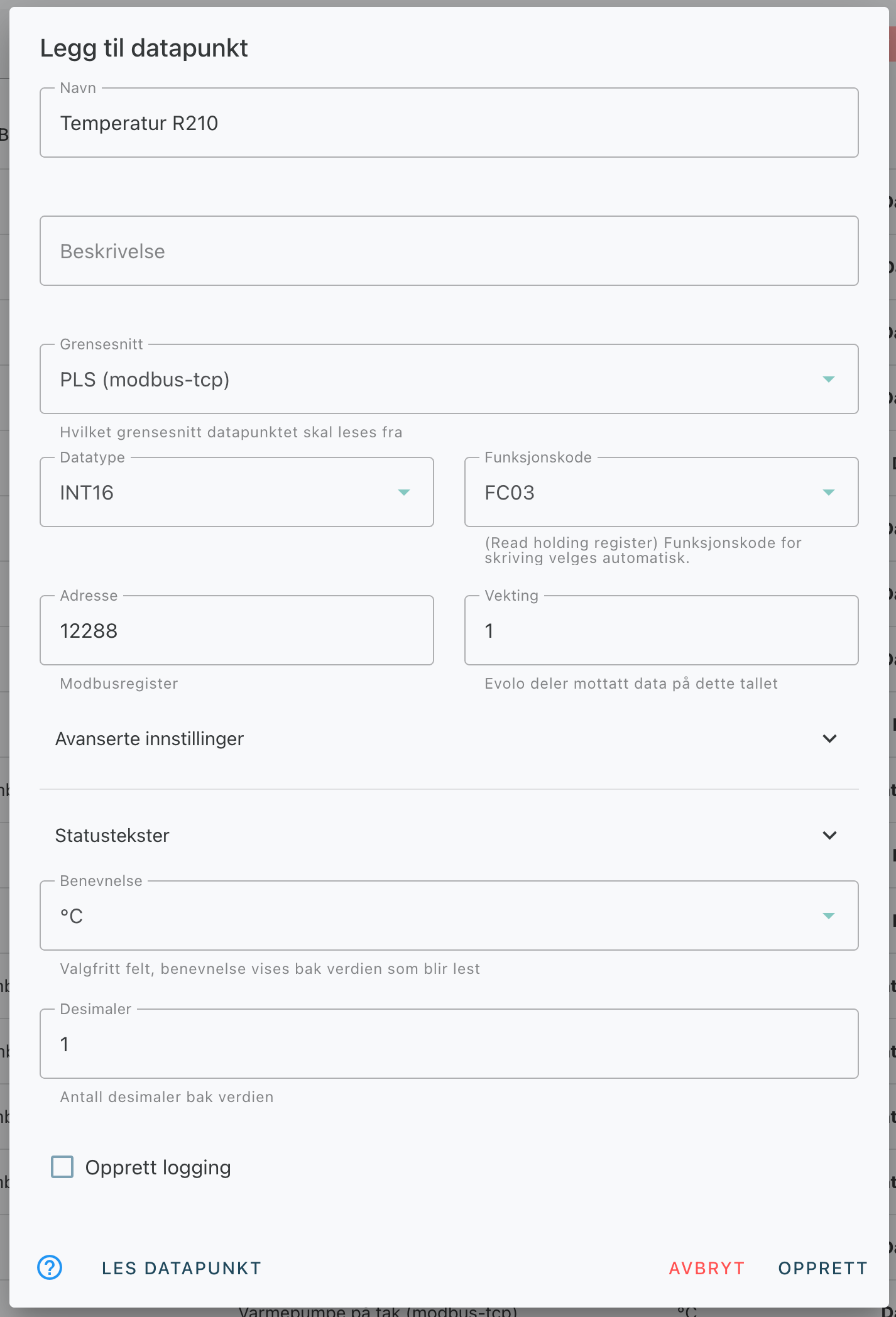
Click here for an explanation of the different fields
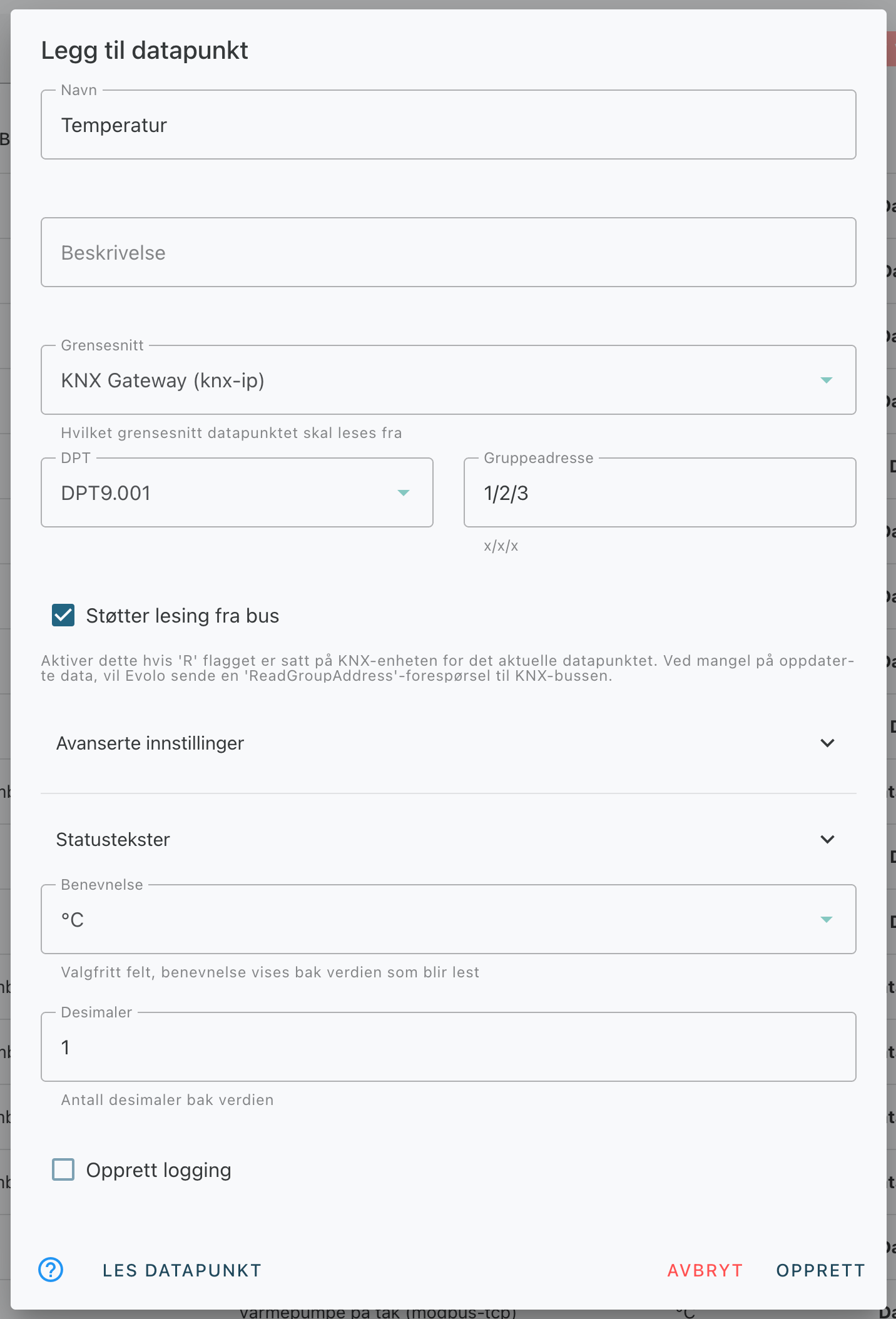
ℹ Supports reading from the bus
KNX is an event-based bus where data is sent from devices when values change. When this feature is enabled, Evolo can send a ReadGroupAddress request to the KNX bus if no updated data is available. Note that not all KNX devices have this feature enabled by default. For performance reasons, it is recommended to check support and activation in ETS before enabling this feature in the top-level system.
ℹ Force reading from KNX bus
When this feature is enabled, the system will always send a request to the KNX bus to retrieve updated data—regardless of whether a value is already stored.
MQTT configuration in Evolo is based on MQTT Explorer.
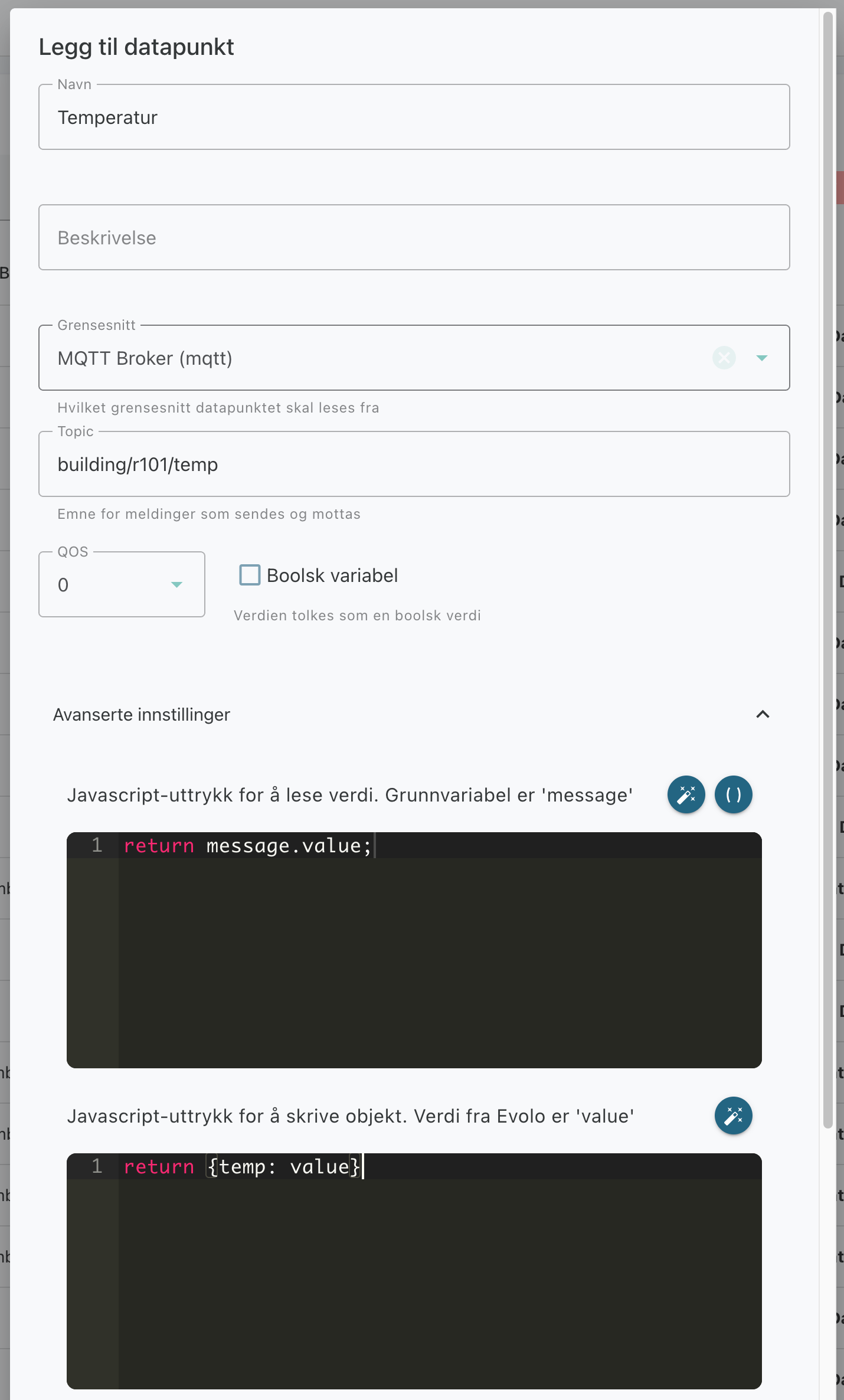
ℹ Topic
Enter the full topic name of the variable you want to read.
ℹ Expression to read value
Here you can retrieve the data point value from the object read from the topic. If only one value is being read, the field can be left blank. If there are multiple parameters in the message, you can retrieve the value using, for example, message.value
ℹ Expression to write value
Here you build the object that is sent to the topic/broker when writing data. The object must be defined in the format the broker requires for the message.
Click here for an explanation of the different fields
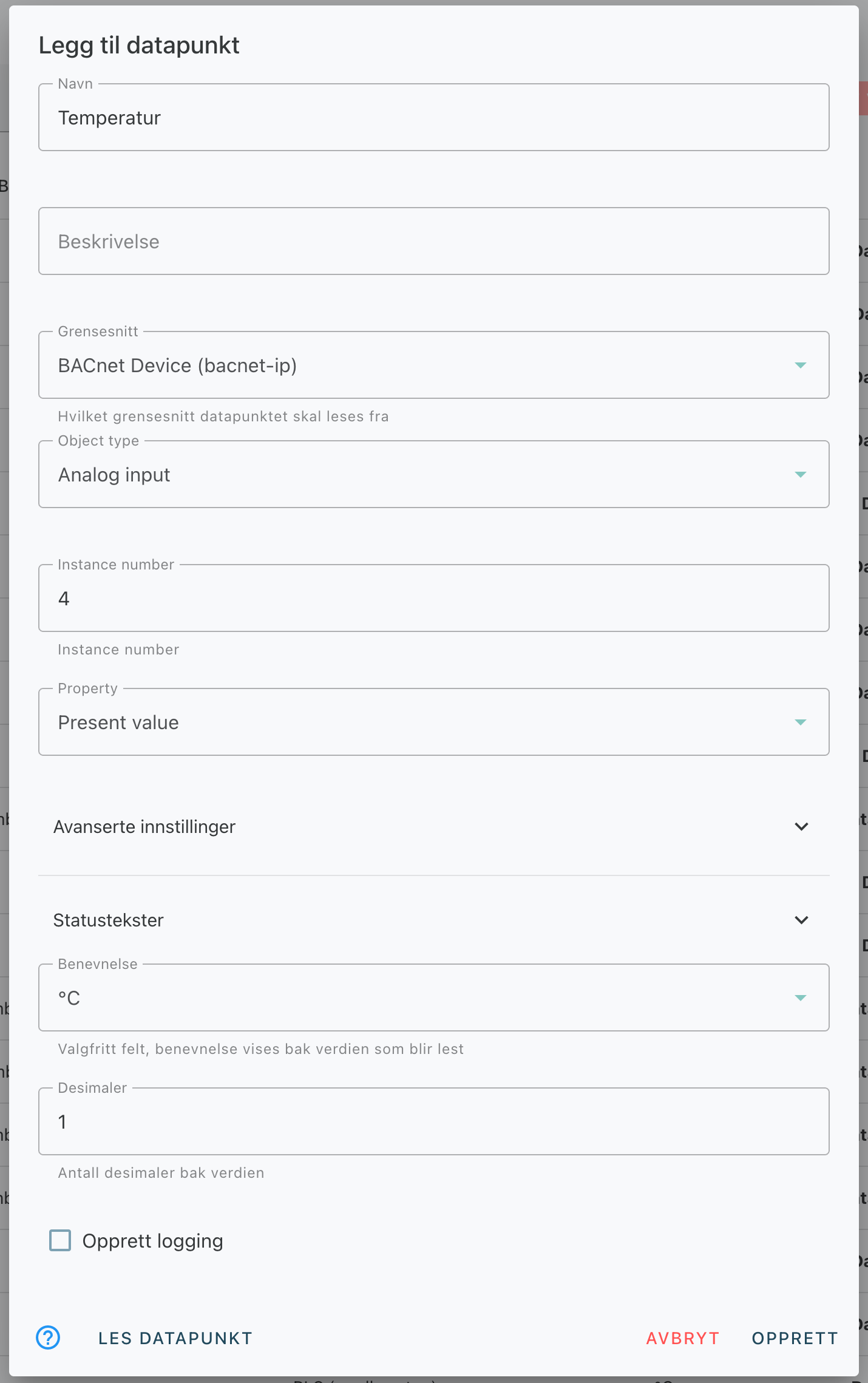
✓ Supported objects
Gateway supports reading and writing of the Present_Value property
Priority
BACnet uses a priority level system (1-16), where 1 is highest and 16 is lowest, to determine which command takes precedence when multiple commands are sent to the same device. Evolo uses priority 8 by default, but you can change this under Advanced Settings for the BACnet data point.
Click here for an explanation of the different fields
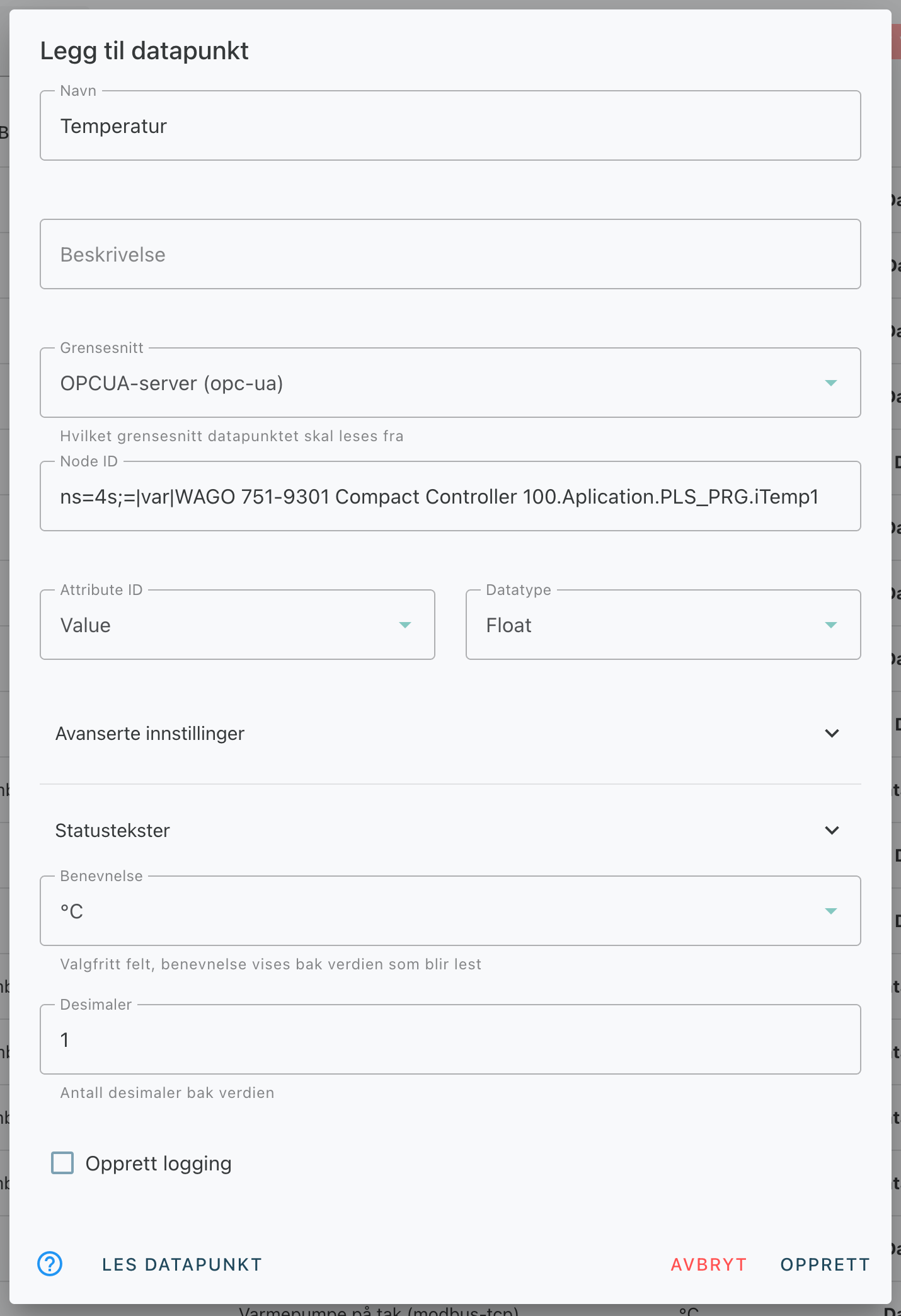
✓ Supported objects:
The gateway supports reading and writing of property values
4. Before creating the data point, you have the option to set up OPC UA at the same time, in which case you can skip the manual setup of logging for the data point.
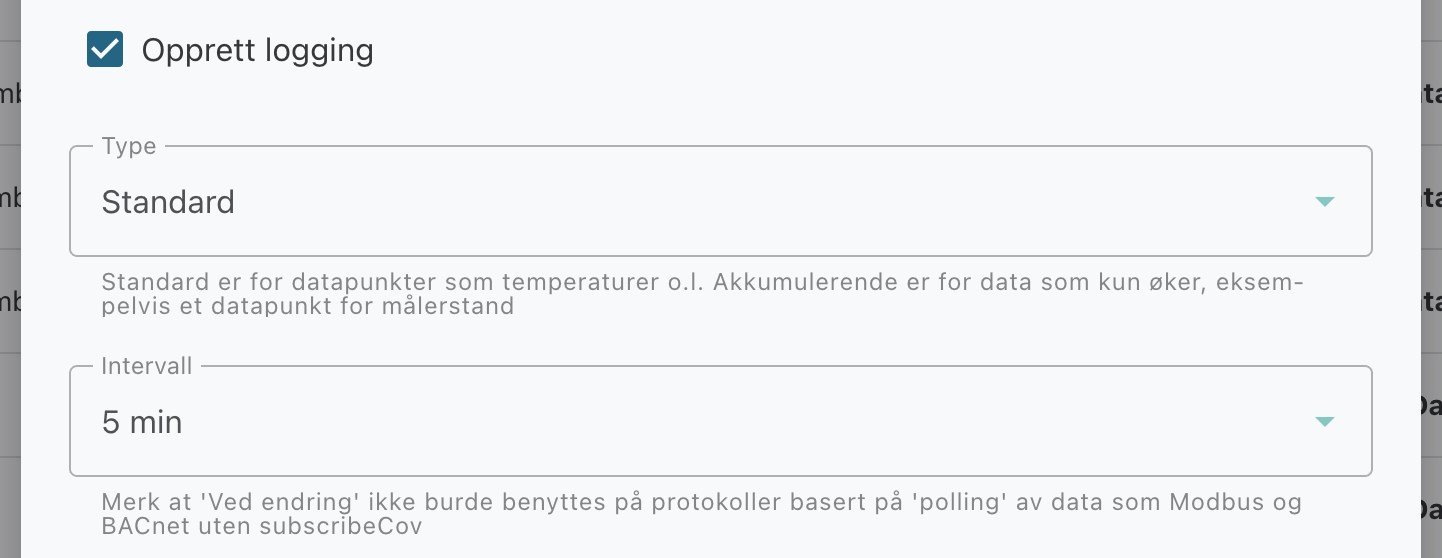
5. Once the data point has been added, you can continue by creating a log or setting up the system with views, alarms, or a calendar.
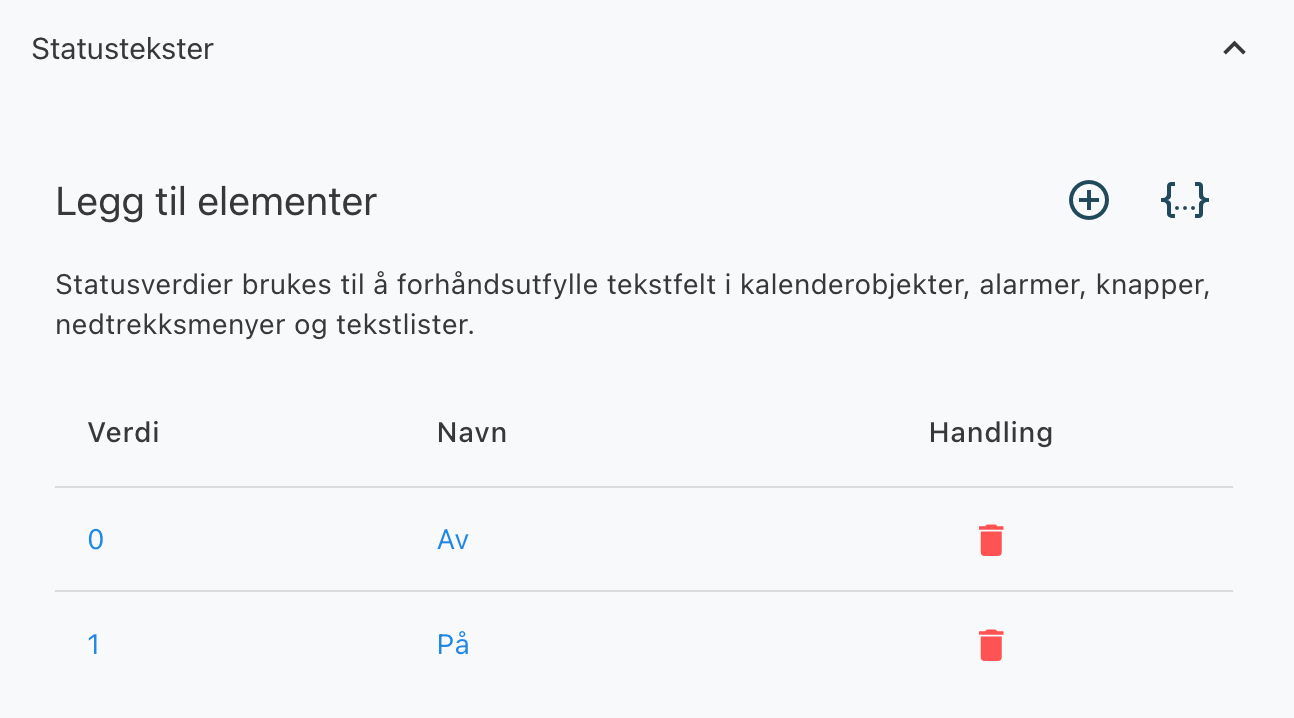
Status Texts
In this menu, you can add status values that can be used to pre-fill text fields in calendar objects, alarms, buttons, drop-down menus, and text lists in the view builder. Each status can be linked to a value and display text based on the data point’s value.
Advanced settings
Here you can define a JavaScript expression to manipulate read and written values.
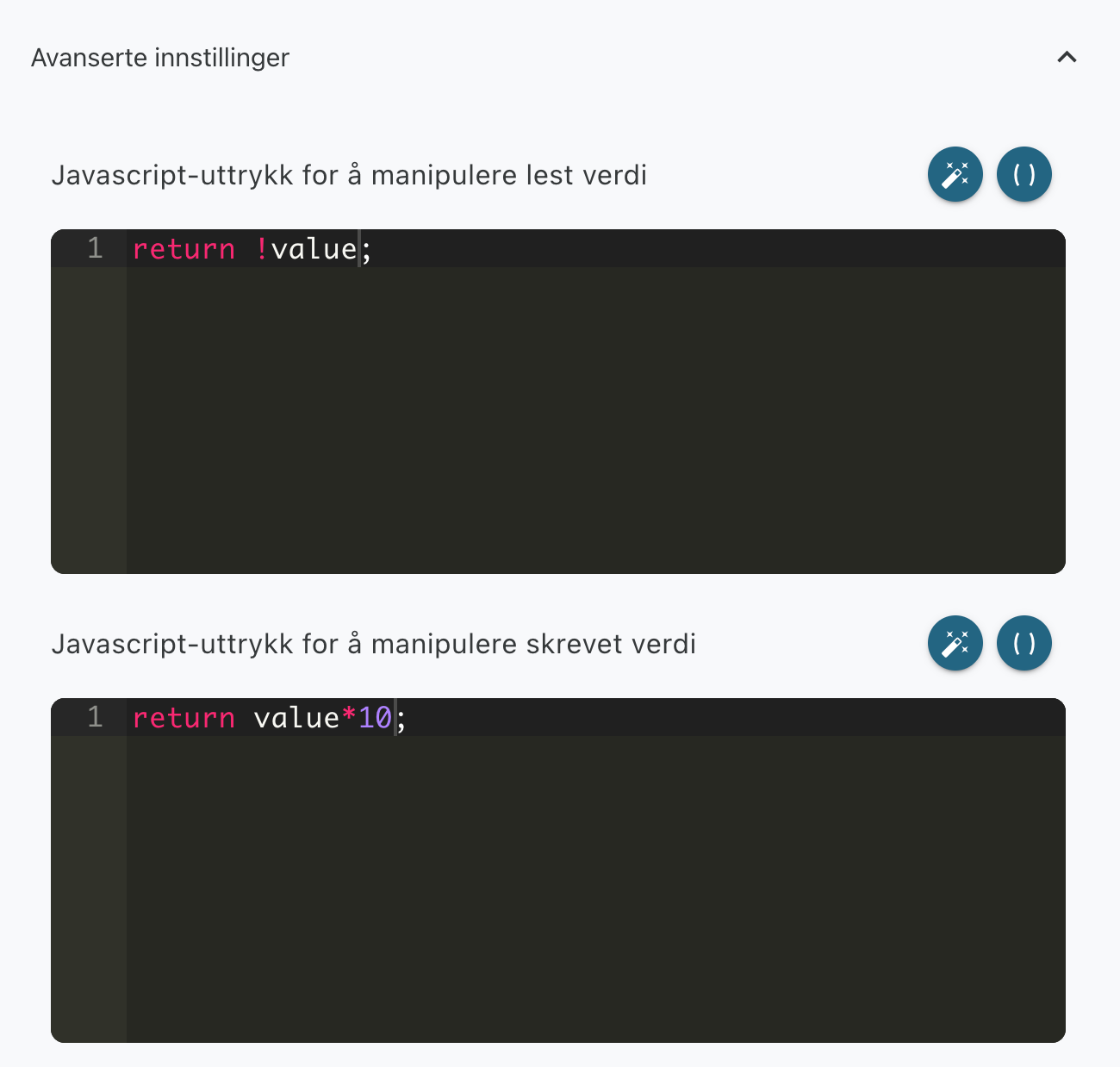
return !value;
This example inverts the value. If the data point is a Boolean variable and the value being read is true, the data point will return false.
return value*10;
This example multiplies the written value by 10 before sending it to the data point being written.