Connect to Evolo MCP: Your Digital Building Management System
Evolo can now be connected to AI tools such as ChatGPT, Copilot, and Claude.
Written By Evolo Support
Last updated 8 days ago
This means you can ask questions about your buildings using everyday language and get answers based on the data in Evolo. You won’t have to manually look up values, compare graphs, or analyze historical data.
Ask what you actually want to know: What’s happening, why is it happening, and what should be followed up on?
Once the connection is set up, the assistant can read information from Evolo and help you find answers without having to manually navigate the system.
Access is read-only. The assistant cannot change settings, write values, or create data in Evolo—yet.
What is MCP?
MCP stands for Model Context Protocol. It is a standard that allows AI tools to connect to external systems in a controlled manner.
For Evolo, this means that an AI assistant can use approved tools to retrieve information from Evolo, such as buildings, alarms, data points, energy meters, and historical data.
Before you begin
You’ll need:
An Evolo account with access to the buildings you want to query.
An AI assistant that supports MCP—such as Claude or ChatGPT. (ChatGPT requires a Pro or Business plan)
Get started
Here’s how to get started:
Go to User → Integrations → MCP in Evolo.
Select which assistant you want to connect to.
Follow the instructions for Claude, ChatGPT, or another MCP-compatible client.
Sign in with your Evolo account.
Authorize access on the consent page.
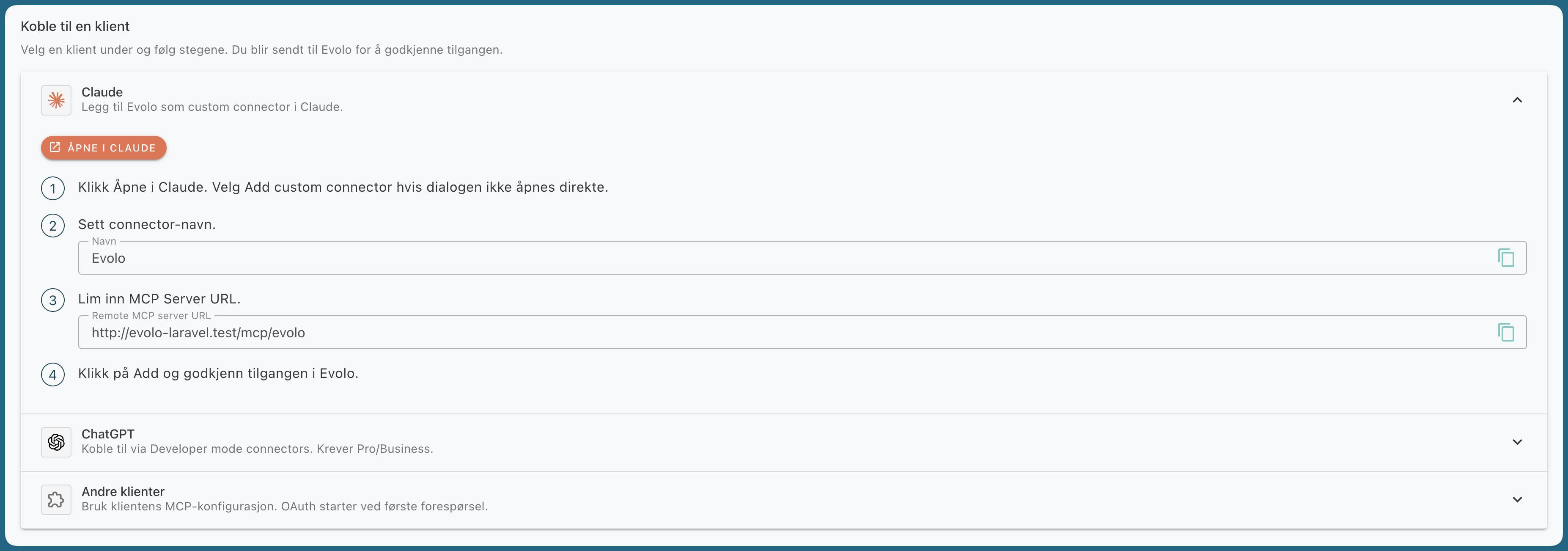
Connect to Claude
Go to Settings → Connectors in Claude.
Select Add → Add custom connector.
Name the connector "Evolo."
Paste: https://app.evolo.no/mcp/evolo into the Remote MCP Server URL field
Click Add.
You’ll be redirected to Evolo to authorize access.
Connect in ChatGPT
Go to Plugins in ChatGPT.
Select the + icon to add a new plugin.
Name the plugin “Evolo.”
Paste https://app.evolo.no/mcp/evolo into the “Connection” field.
Select OAuth under “Authentication.”
Connect the connector.
Sign in with your Evolo account.
Authorize access on the consent page.
ChatGPT may display the connector with the status “developer mode” / “development.” This is completely normal for a custom connector. It simply means that it hasn’t been published in OpenAI’s catalog yet.
Connect in Microsoft Copilot
Open Copilot Studio and select your agent.
Go to Tools → Add → Model Context Protocol.
Enter:
Server name:
EvoloServer description: Read access to building data in Evolo: data points, history, alarms, and energy meters.
Server URL: Paste: https://app.evolo.no/mcp/evolo
Authentication:
OAuth 2.0
Click Add, and authorize access in Evolo when prompted.
(See also Microsoft’s own guide: Connect your agent to an existing MCP server)
What You Can Ask About
You don’t need any technical knowledge. Just ask in plain language.
Some examples:
“Which buildings do I have access to?”
“Show active high-priority alerts right now.”
“What was the total energy consumption at [building] last month?”
“Show me the layout of the heating plant at [building].”
“Which calendar events are controlling the ventilation this week?”
“Compare energy consumption across my buildings from last year.”
If you have access to multiple buildings, you can ask the assistant to list them first and then choose which one you want to work with.
Tools the assistant can use
You don’t need to specify the tools. The assistant will automatically select the right tool based on your question.