Look up BACnet data points
Use the BACnet client to discover devices, read objects, and import them as data points in Evolo.
Written By Evolo Support
Last updated 2 days ago
What is BACnet scanning?
BACnet scanning allows you to find and import BACnet devices, objects, and data points directly into Evolo.
You can find the tool here:
Configuration → Gateway → Select Gateway → BACnet Client
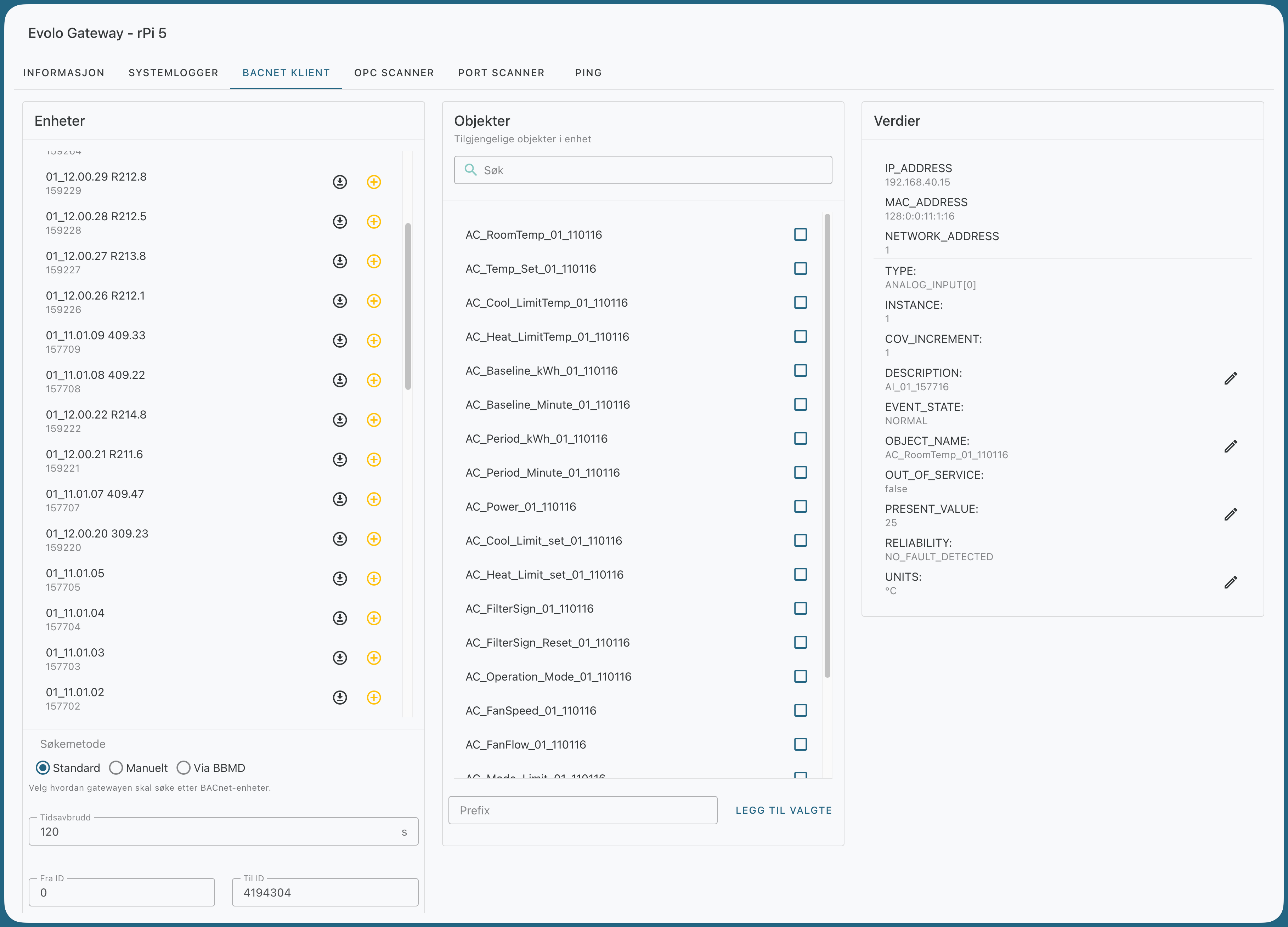
How to search for BACnet data points
1. Find a device
Select how you want to search for devices in the BACnet client:
Standard
Searches for devices on the local network using standard BACnet discovery.
Manual
Specify devices to scan manually.
Format:
IP:device-IDIP:port:device-ID
Separate multiple entries with commas.
Use this if the devices do not respond to a standard Who-Is search, or if you already know the IP address and device ID.
Via BBMD
Used when devices are on other subnets. The gateway is temporarily registered as a Foreign Device against the selected BBMD during the search.
Once you’ve found the device you want to use, click on it to load the objects. If the device isn’t already in the “Evolo,” you can add it directly from the list.
2. Import objects
Click on the objects to retrieve their names and details. Then select the objects you want to import as data points.
3. Prefix for data point names
Before adding the objects, you can enter a value in the Prefix field.
The prefix is added to the front of the data point name when the data points are created. This is useful if the building has multiple units with the same or similar data point names, and you want to make them easier to distinguish from one another.
Example:
without prefix:
Temperaturwith prefix:
360.001_Temperatur
4. Add selected objects
Click "Add Selected" to import the objects as data points in Evolo.
Fields that are filled in automatically
Once the objects have been added as data points, these fields are filled in automatically:
Name =
OBJECT_NAMEDescription =
DESCRIPTIONLabel =
UNIT
Troubleshooting
I can't find any devices or objects
This usually means that no BACnet devices are responding to the Who-Is broadcast from the gateway.
By default, the broadcast is sent to 255.255.255.255. You can set a custom broadcast address in the gateway’s advanced settings.
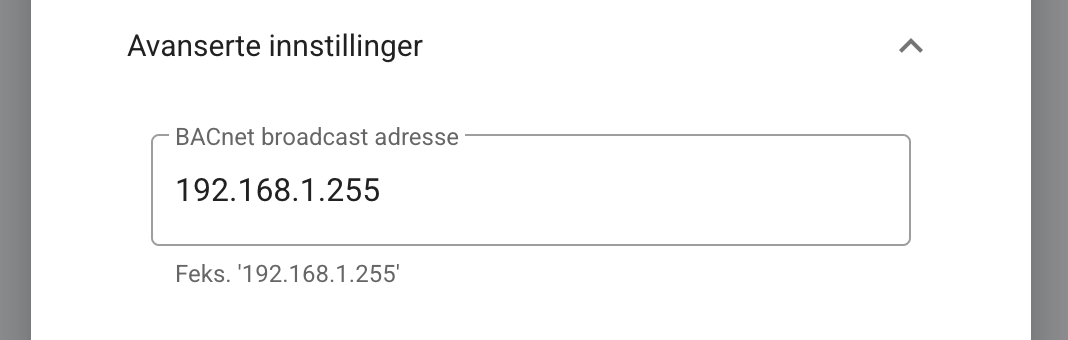
After changing the broadcast address, you must restart the gateway for the change to take effect.
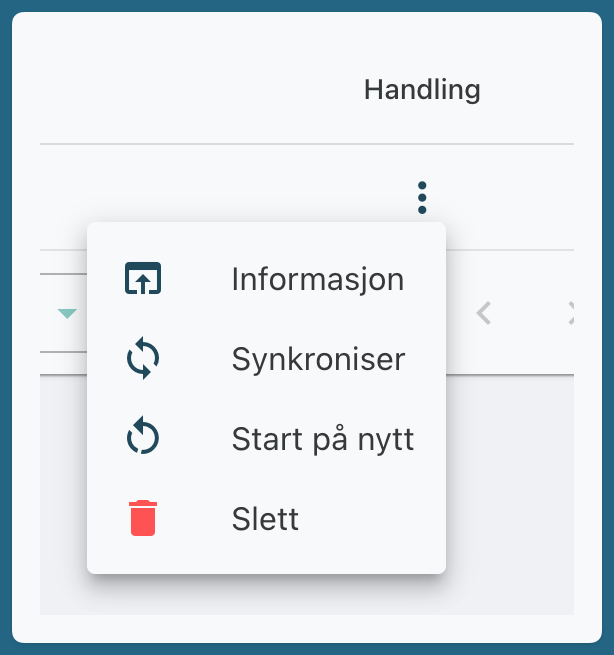
For example, if the local subnet is 192.168.1.0/24, you can try the broadcast address 192.168.1.255, since some devices only respond to this address.
If the devices still do not appear, you can use the Manual search method and enter the IP address and device ID directly.
I can’t load objects using a manual search
If the device takes a long time to generate the object list or respond to the request, the search may time out.
Solution: Increase the timeout in the BACnet client and try the search again.

I only see devices labeled "UNKNOWN" when using manual search
When using Manual mode, Evolo attempts to retrieve objects based on the IP address and BACnet ID you entered. If the device does not respond, it may still appear in the list, but with a status indicating that the request timed out.
If the device takes a long time to generate object lists or process requests, you can increase the timeout so that Evolo waits longer before stopping the request.